How to Turn a Website Into a Video (With AI)
Turn any website URL into a short branded promo video with AI: what to prepare, a 15-second scene plan, editing the brief, and where to post it.
· 8 min read
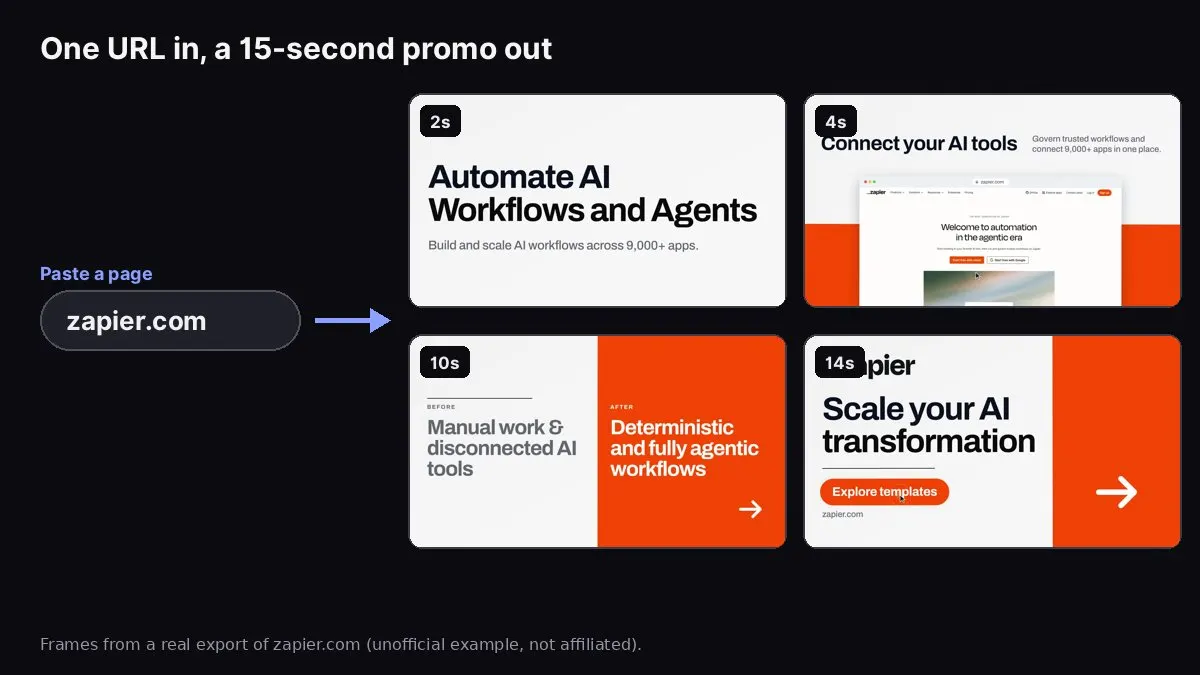
Frames from a real 15s export of zapier.com made with Website to Promo Video. Unofficial example, not affiliated with Zapier.
To turn a website into a video, paste the page's URL into a website-to-video tool, check the short brief it writes from your page (headline, features, proof and call to action), pick a shape and length, and let it build scenes from your real screenshots, brand colours and logo. Then watch the preview with sound, fix anything that reads wrong, and export an MP4 for your site, launch post or social feed.
The image above shows frames from a real 15-second export of zapier.com made with our Website to Promo Video tool. It is an unofficial example to show the output; Zapier had nothing to do with it. The tool read the public homepage, pulled the headline "Automate AI Workflows and Agents", put a live screenshot of the page in a browser frame, turned two lines of copy into a before-and-after card, and ended on the page's own call to action and URL.
This guide covers what "URL to video" tools actually do, which pages turn into good videos, a step-by-step walkthrough, how to check the result, and what to do when your page doesn't have enough to work with.
What a website-to-video tool actually does
"URL to video" sounds like one step, but it's three separate jobs, and tools differ a lot in how well they do each one:
- Reading the page. The tool loads your URL and pulls out the useful parts: the main headline, the subheadline, feature titles and descriptions, numbers and quotes, the call-to-action button, your logo, your colours and fonts, and the images on the page. Some tools also take live screenshots of the page.
- Writing the story. Raw page copy isn't a video script. The tool has to choose one promise, two or three features and one proof point, and order them so a viewer understands the product in 15 to 30 seconds.
- Rendering scenes. This is where tools split. Some animate your real screenshots and copy (motion graphics). Some put an AI avatar in front of the camera reading a script. Others use stock footage or generated clips that only loosely match your product.
For software, apps and SaaS products, motion graphics built from your real screens are usually the most honest choice: the viewer sees the actual product, not a stock actor holding a phone. That's the approach Website to Promo Video takes.
Which pages make good videos
The video can only be as clear as the page it reads. Before you paste a URL, check that the page has:
- One clear headline that says what the product does. "Automate AI workflows and agents" works. "The future of work, reimagined" gives the video nothing concrete to say.
- Three or four named features with a short line each. These become the feature scenes.
- A visible product. A screenshot, a dashboard image or a demo GIF on the page gives the video something real to show.
- One proof point you're happy to repeat: a customer count, a rating, a quote, a "used by" line. Only use numbers that are true and already public on your page.
- A clear call to action, like "Start free" or "Book a demo". The last scene uses it.
Pages that work well: a SaaS homepage, a product or feature page, an app's landing page, a launch page, a pricing page with a clear headline.
Pages that work poorly: blog posts (use a URL-to-explainer tool for those), pages behind a login, pages that are mostly a cookie wall or an "under construction" notice, and very long pages that sell five products at once. If your homepage covers several products, paste the specific product page instead.
Step 1: Paste your URL
Open Website to Promo Video and paste a public page you own or have permission to use. Reading a site is free. The tool fetches the page from its servers, then shows you what it found: the copy, colours, fonts, logo and images, plus live screenshots of the site when they're available.
If the live screenshots can't be captured (some sites block automated browsers), you'll see a note, and you can upload a few screenshots of your own. Uploading is also the right move when the best screens of your product are behind a login, like a dashboard or an editor.
Step 2: Edit the brief
The tool turns the page into a short brief you can edit before anything is generated:
- Headline and subheadline: the opening line of the video.
- Features: short titles with a benefit line each.
- Proof: a number or quote from your page.
- Call to action: the button text and your URL.
This is the step that decides whether the video is good. A few rules:
- Shorter is better. A viewer reads about two or three words per second on a moving video. Cut every feature line to under ten words.
- Say one thing per scene. If a feature line has an "and" in it, it's probably two scenes.
- Keep it true. The brief is built only from your page, and the AI is told not to invent numbers, customers or quotes. Don't add claims your page can't back up.
Step 3: Pick a look, shape, length and music
- Look: Auto lets the AI pick per brand. Product puts your UI front and centre on a quiet stage. Editorial uses light paper and serif headlines. Swiss uses huge bold type and one flat field of your brand colour (the zapier.com example above).
- Aspect: 16:9 for YouTube, your website and Product Hunt; 9:16 for Reels, Shorts and TikTok; 1:1 for feeds. See our guide to video aspect ratios for social media if you're unsure.
- Length: 15 seconds for social and ads, 30 seconds when you need room for more features.
- Music: Auto matches a genre to your site, or choose one yourself (upbeat, corporate, lo-fi, cinematic, synthwave and more), or no music. The video is cut to the beat of the track. Our guide on choosing music for a promo video explains how to pick.
Then click generate. The AI plans a storyboard, writes the animation, renders sample frames in your browser and checks them for text over screenshots, cut-off or overlapping text, low contrast and blank frames, then fixes what it finds before you see the result.
Step 4: Preview, fix and export
Watch the full preview with sound at least twice: once for the story, once for details.
- Read every line at full speed. If you can't finish reading a line before the scene changes, shorten it in the brief.
- Check the screenshots. They should be your current product, sharp, and not covered by text.
- Check the brand. Logo readable, colours right, product name spelled correctly.
- Check the last scene. The URL and the call to action should be on screen long enough to read.
If one spot looks off, describe it in plain words, for example "at 3.6s the headline overlaps the screenshot", and apply a change. When you're happy, export an MP4 in your browser. Chrome, Edge and Safari export H.264 video with AAC audio; keep the tab open while it exports. You can also re-lay out the same video for another aspect ratio without starting over, which is the quickest way to get a 16:9 version for your site and a 9:16 version for Reels.
Website to Promo Video
Paste your site → a branded 15–30s promo with your screenshots, brand and AI music. MP4 in your browser.
When your page doesn't have enough to work with
A thin page gives a thin video. Common problems and fixes:
- No product visuals on the page. Upload three to five screenshots of the product in use, with real-looking data rather than empty states.
- Vague headline. Rewrite it in the brief as "[Product] helps [who] [do what]". You don't have to change your website first.
- Too many features. Pick the three that a new user notices in their first session. The rest belong on your features page.
- No proof. Skip the proof scene rather than inventing one. A clear product shot does more than a made-up number.
- The page is in a language the viewer doesn't read. Edit the brief text into the viewer's language before generating.
Website to video vs screen recording
A screen recording (Loom, OBS, QuickTime) shows a real workflow click by click. It's the right format for a demo, onboarding or a support answer, but it is usually too slow for a social feed and goes stale every time your UI changes.
A website-to-video promo is the opposite: short, branded and designed to be watched muted in a feed. It shows what the product is and why it matters, not every click. Many teams use both: the promo to get attention on the landing page, Product Hunt or social, and a two-minute recording for people who want the full walkthrough.
Where to use the video
- Your landing page hero, muted and looping. See how to add a video to your landing page for the code and file-size checklist.
- A launch, like Product Hunt. Our Product Hunt launch video guide covers the specs and the upload step.
- Social posts on X, LinkedIn, Reels, Shorts and TikTok, in the right shape for each.
- Release notes and changelogs. A short clip of a new feature, see how to make a feature announcement video.
- Sales emails and pitch decks, as a link or a GIF-like loop.
FAQ
Can I turn any website into a video? Any public page you own or have permission to use. Pages behind a login can't be read, but you can upload screenshots of those screens.
Do I need video editing skills? No. You edit a text brief and pick options from short lists. You can describe fixes in plain words instead of using a timeline.
Does the video have a voiceover? No. Website to Promo Video makes music-driven motion graphics with on-screen text, which suits feeds where most people watch with the sound off.
How long does it take? Minutes, not days. Reading the site and writing the brief is quick; the frame check and polish step asks you to keep the tab open for about a minute; and the MP4 export runs in your browser, a little longer for 30-second videos.
What does it cost? Reading a site and editing the brief are free. Generating a promo uses credits from a pack (packs start from $5 and never expire), and failed runs are never charged. See the Website to Promo Video FAQ for the details.
If you're comparing options first, our roundup of website-to-video tools for SaaS launches covers what each one makes and how each one charges.