How to Make a Feature Announcement Video
Announce a new feature with a 15-second video: when it's worth it, a before/after scene plan, making it from your changelog, and where to post.
· 6 min read
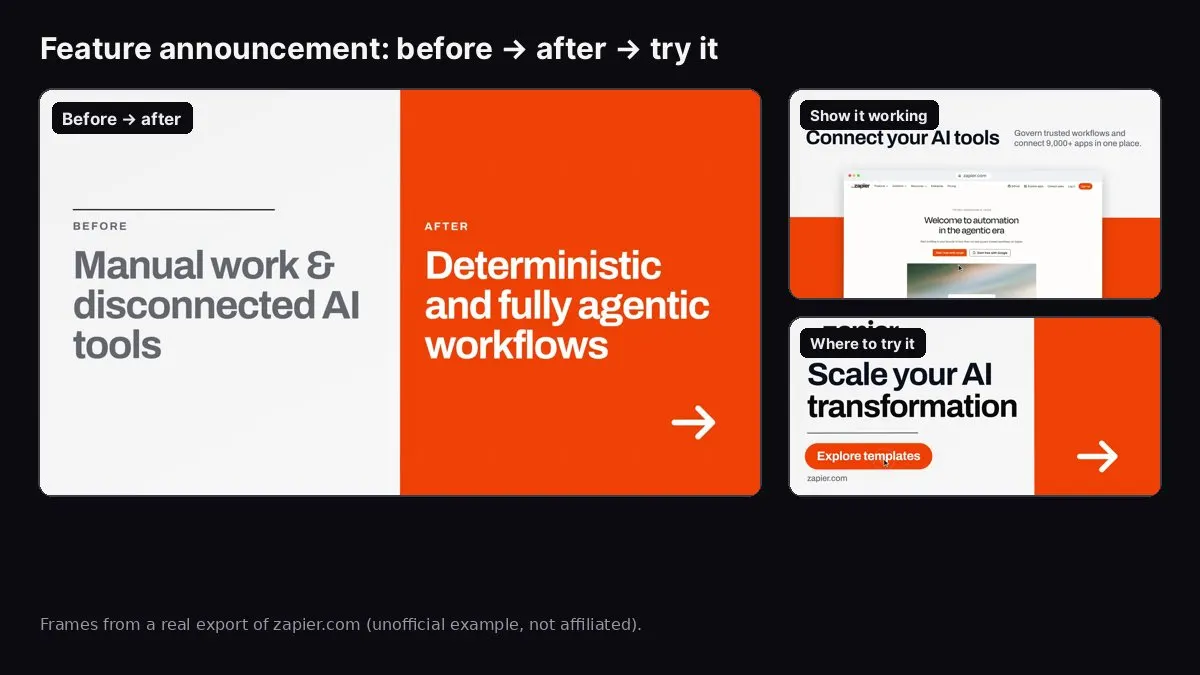
Frames from a real export of zapier.com made with Website to Promo Video. Unofficial example, not affiliated with Zapier.
To make a feature announcement video, pick one feature, show the "before" (the old way or the problem) in a scene or two, show the feature working on a real screen, add one line on who it's for, and end with where to try it. Keep it to 15 seconds, make it readable muted, and post it natively wherever you announce the release: your changelog, X, LinkedIn, your newsletter and in-app.
The image above shows frames from a real 15-second export of zapier.com made with our Website to Promo Video tool: a "Before / After" card ("Manual work & disconnected AI tools" → "Deterministic and fully agentic workflows"), a live screenshot in a browser frame, and the closing call to action. It's an unofficial example to show the output; Zapier had nothing to do with it. The same before → after → try-it shape works for almost any feature launch.
This guide covers when a feature deserves a video, a scene-by-scene structure, how to make one from your feature page or changelog, and where to post it.
Does this feature need a video?
Not every release does. Video is worth it when:
- The feature is visual. A new editor, a dashboard, a redesign, an integration you can see working.
- It changes how people work. Something that removes steps ("now one click instead of five") is easiest to understand when you watch it.
- It's a reason to come back. A feature aimed at churned or inactive users needs something that stands out in a feed or inbox.
- It's a launch moment. A "2.0" or a major integration you'll promote for weeks.
For bug fixes, small settings and API changes, a clear line in the changelog is better than a video nobody needs.
A 15-second structure for feature videos
- Before (0–3s): the old way, the problem, or the question users kept asking. "Exporting reports took 5 steps."
- After (3–6s): the feature name and the one-line change. "Now: one-click export."
- Show it (6–11s): the real screen, with the feature in use. This is the core of the video.
- Who it's for (11–13s): a short line or a second screen. "Available on all plans" or "For teams on Pro."
- Try it (13–15s): where to find it. "Live now · yourapp.com/changelog"
For a bigger launch, stretch to 30 seconds and add one or two more "show it" scenes. Our promo video script guide has full templates.
Writing the lines
- Lead with the user's benefit, not the feature name. "Reports in one click" beats "Introducing Export 2.0."
- Use the before/after contrast. It's the fastest way to show why the change matters.
- Use real numbers only. "5 steps → 1" is great if it's true. Don't invent speed-ups.
- Say where it is. "In Settings → Export" or "On all plans" saves a support ticket.
- Keep each line short. Under eight words; viewers read moving text slowly.
How to make it
You don't need an editor or a timeline.
- Write or update the feature page (or a changelog entry) with a clear headline, two or three bullet points, and a screenshot. You'll need it anyway, and it's what the video is built from.
- Paste that page into Website to Promo Video. It reads the copy, colours, fonts, logo and images, and captures live screenshots when it can. Reading the page is free.
- Upload screenshots of the feature in use if it lives behind a login. Show the moment it does its job, with realistic data.
- Edit the brief into before → after → show → try: set the headline to the after-line, put the before-line and features into the feature fields, use "Live now" or the plan availability as the proof line, and set the call to action.
- Choose the shape: 16:9 for your changelog, blog, X and LinkedIn; 9:16 if you post on Reels or Shorts. Choose 15 seconds.
- Generate, watch it muted, and fix anything that reads wrong by describing it ("the after-line at 4s is too long").
- Export the MP4. Re-lay it out for other shapes without starting over.
Website to Promo Video
Paste your site → a branded 15–30s promo with your screenshots, brand and AI music. MP4 in your browser.
Where to post a feature video
- Changelog or release notes page: embed the MP4 at the top of the entry, muted and looping, with the text below it.
- X and LinkedIn: upload natively with two lines of text and a link to the changelog. See video aspect ratios for social media for the right shape.
- Email newsletter: most email clients don't play video. Use the poster frame as an image with a play button drawn on it, linked to the changelog.
- In-app: a "What's new" modal or banner with the looping video. Keep it small (1–2 MB) and dismissible.
- Customer success: send it to the customers who asked for the feature. That message often gets the warmest replies.
- Docs and help center: link to the video from the help article for the feature.
A simple release-video routine
Teams that ship often can turn this into a habit:
- Ship the feature and write the changelog entry with one screenshot.
- Make a 15-second 16:9 video from the entry.
- Re-lay out to 1:1 or 9:16 for social.
- Post the same day on your changelog, X and LinkedIn, and add it to the next newsletter.
- Every month, combine the biggest releases into a 30-second "What's new" video for your homepage or a launch post.
Because each video starts from a page you already wrote, the extra work per release is small.
Mistakes to avoid
- Announcing a feature that isn't available yet. If it's in beta or rolling out, say so on screen.
- Showing fake data that looks real. Use sample data that's obviously sample, or real data you're allowed to show. Blur customer names.
- A logo-heavy opener. People already know who you are. Start with the change.
- Too many features at once. One feature per video. Monthly round-ups are the exception.
- No link. Every post with the video should link to where people can try it.
FAQ
How long should a feature announcement video be? 15 seconds for social and changelogs; 30 seconds for a major launch.
Should I record my screen instead? A screen recording is great for a help article or a detailed walkthrough. For the announcement itself, a short designed video with your branding and on-screen text gets the point across faster in a feed. Many teams post the short video and link to the walkthrough.
Can I make one video per release without a designer? Yes. Starting from your changelog entry or feature page, Website to Promo Video builds the scenes, timing and music for you, and you edit the text.
What does it cost? Reading the page and editing the brief are free. Each video uses credits from a pack (packs from $5, credits never expire), and failed runs are never charged. See the tool FAQ. For a full launch, see also how to make a SaaS promo video.