How to Add a Video to Your Landing Page (Fast)
Add a fast, accessible promo video to your landing page: file size and format, autoplay rules, HTML and React snippets, posters and mobile tips.
· 6 min read
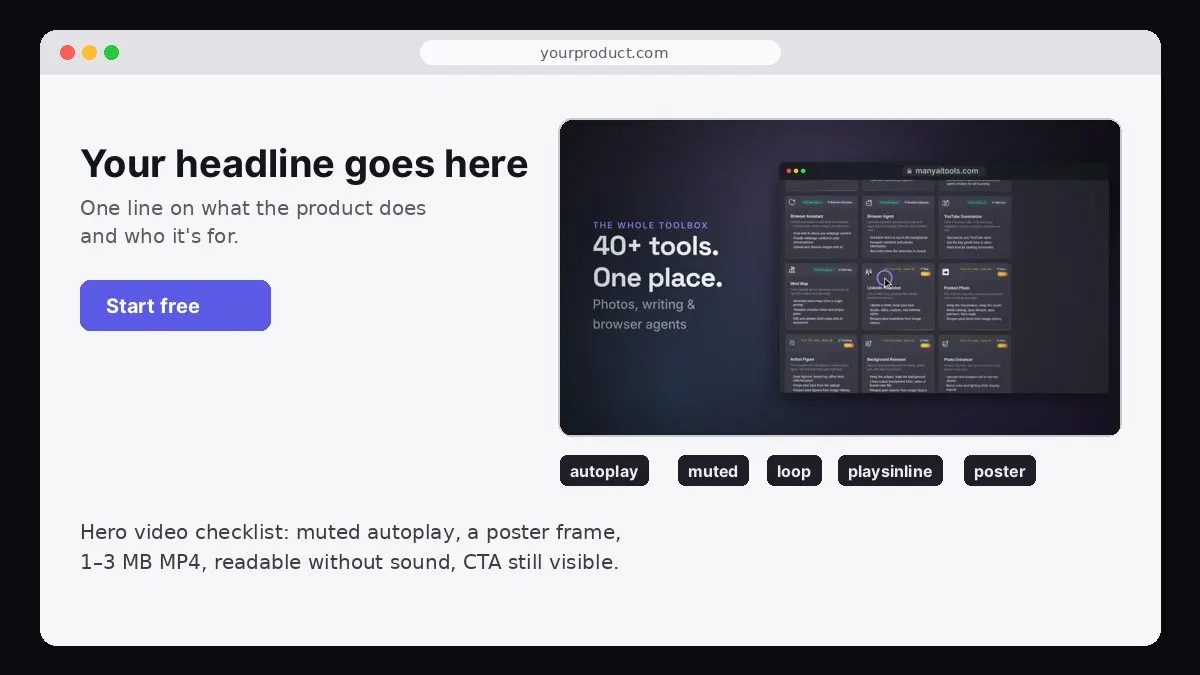
Mockup: our own manyaitools.com promo, made with Website to Promo Video, placed in a landing page hero.
To add a video to your landing page without slowing it down, use a short (10–30 second) MP4 that's 1–3 MB, set it to autoplay muted loop playsinline, give it a compressed poster image so something shows instantly, and keep your headline and call-to-action button as real HTML text next to it, not inside the video. Add a visible pause button, respect reduced-motion settings, and test the page on a phone over a slow connection.
The image above is a mock landing page with a real frame from the manyaitools.com promo, which was made with our Website to Promo Video tool and plays muted on our own tool page. This guide covers when a hero video helps, what kind of video to use, copy-paste HTML and React code, file-size and performance rules, accessibility, and how to test whether it actually improves sign-ups.
When a landing page video helps (and when it doesn't)
A hero video helps when your product is easier to understand moving than still: an editor, a dashboard that updates, an automation that runs, an app with a satisfying "after" moment. It gives visitors the "oh, that's what it does" moment without reading.
It doesn't help when:
- It replaces the headline. Visitors still need a clear text headline to decide in a few seconds whether to stay. The video supports the headline; it doesn't replace it.
- It's slow to start. A blank box with a spinner is worse than a screenshot.
- It's a long explainer. A two-minute video in the hero won't autoplay with sound, and few people press play. Put long videos further down the page with a play button.
- It's decorative. Abstract stock footage behind your headline makes text harder to read and says nothing about the product.
Which video to use in the hero
The best hero video is a short, muted, looping promo that shows your real product:
- 10 to 30 seconds, so the loop doesn't feel repetitive and the file stays small.
- Readable without sound. Text on screen carries the message.
- Shows the product early. The first frame visitors see should already show the product or the promise.
- Matches the page. The same headline, colours and call to action as the HTML around it.
If you don't have one, you can make one from the landing page itself: paste the URL into Website to Promo Video, keep the brief close to your page copy, choose 16:9 and 15 seconds, and export the MP4. The 16:9 example below is exactly the file we use on our own tool page.
Step 1: Compress the file
A 15-second 1080p export can be several megabytes. For a hero, aim for 1–3 MB:
- Resolution: 1280×720 is plenty for a hero that's half the page width. Use 1920×1080 only for full-width heroes.
- Codec: H.264 MP4 plays everywhere. You can add a WebM (VP9 or AV1) source first for smaller files in browsers that support it.
- Audio: remove it for a muted hero, it's dead weight. Keep it only if you offer a "sound on" button.
- Fast start: move the file's index to the front so it can start playing before it's fully downloaded.
With the free tool ffmpeg, one command does all of this:
ffmpeg -i promo.mp4 -vf scale=1280:-2 -c:v libx264 -crf 26 -preset slow -pix_fmt yuv420p -an -movflags +faststart hero.mp4
Raise -crf (28, 30) for a smaller file; lower it (23) for sharper text. Then make a poster image from a frame that shows the product:
ffmpeg -ss 4 -i hero.mp4 -frames:v 1 -q:v 4 hero-poster.jpg
Step 2: Add the HTML
<video
  src="/hero.mp4"
  poster="/hero-poster.jpg"
  autoplay
  muted
  loop
  playsinline
  preload="metadata"
  width="1280"
  height="720"
  aria-label="15 second product promo: headline, dashboard, three features"
></video>
What each attribute does:
- autoplay + muted: browsers only autoplay video without sound. Leave out
mutedand it won't start. - playsinline: stops iPhones from jumping to full-screen playback.
- loop: restarts at the end.
- poster: the image shown before the first frame loads. This is what visitors on slow connections see, so make it a good frame.
- preload="metadata": avoids downloading the whole file before it's needed (autoplay will still load it).
- width and height: reserve the space so the page doesn't jump when the video loads.
In React or Next.js, the same element works, with camelCase attributes:
<video src="/hero.mp4" poster="/hero-poster.jpg" autoPlay muted loop playsInline preload="metadata" width={1280} height={720} />
Step 3: Keep the page fast
- Keep the headline and button in HTML. They render immediately and are what search engines and screen readers read.
- Optimise the poster like a hero image. It's often the largest thing on screen when the page first paints. Compress it and size it to the displayed width.
- Don't lazy-load a video at the top of the page. It should start loading right away. Do lazy-load videos further down (load the source when they scroll into view).
- Host it on a CDN with caching. Most hosting platforms (Vercel, Netlify, Cloudflare) serve files from your
publicfolder through a CDN. - Skip YouTube embeds for the hero. A YouTube iframe loads far more code than a small MP4 and shows YouTube's player UI. Use YouTube for long videos lower on the page.
Step 4: Make it accessible
- Add a pause button. Accessibility guidelines (WCAG 2.2.2) ask that moving content which starts automatically and lasts more than five seconds can be paused.
- Respect reduced motion. Visitors who set "reduce motion" in their system shouldn't get autoplaying video:
@media (prefers-reduced-motion: reduce) {
  .hero-video { display: none; }
  .hero-poster { display: block; }
}
- Describe it. An
aria-labelor nearby caption says what the video shows. - Don't put essential text only in the video. Prices, terms and the call to action belong in HTML.
Website to Promo Video
Paste your site → a branded 15–30s promo with your screenshots, brand and AI music. MP4 in your browser.
Step 5: Test it
- On a real phone, on mobile data. Does the poster show instantly? Does the video start without tapping?
- In Low Power Mode on iPhone. iOS may not autoplay video there. Your poster is the fallback, so it should look good on its own.
- With a performance tool like PageSpeed Insights or Lighthouse, before and after adding the video. Watch Largest Contentful Paint and total page weight.
- For conversions. Run the page with and without the video (an A/B test, or two comparable weeks) and compare sign-up or demo-request rates. Keep it only if it helps.
Where else to use the same video
The hero file is also a ready-made launch asset: upload it to YouTube for your Product Hunt launch, post it natively on X and LinkedIn, and re-lay it out as 9:16 for Reels and Shorts (see video aspect ratios for social media).
FAQ
Will a hero video hurt my SEO? Not if the page stays fast and the important text is in HTML. Search engines read your headline and copy, not the words inside the video.
Should the hero video have sound? No. Browsers won't autoplay with sound, and unexpected audio annoys visitors. Offer a "sound on" button if the music matters.
MP4 or GIF? MP4. A GIF of the same clip is usually many times larger and looks worse.
How long should a landing page video be? 10 to 30 seconds for a looping hero. Longer explainers belong lower on the page with a play button.
How do I make a hero video if I'm not a designer? Paste your landing page into Website to Promo Video, edit the brief, choose 16:9 and 15 seconds, and export. The complete website-to-video walkthrough covers each step.