How to Make an App Promo Video (9:16 and 16:9)
Make an app promo video for Reels, Shorts, TikTok and your app page: vertical layout, phone screenshots, a 15-second plan and store rules.
· 6 min read
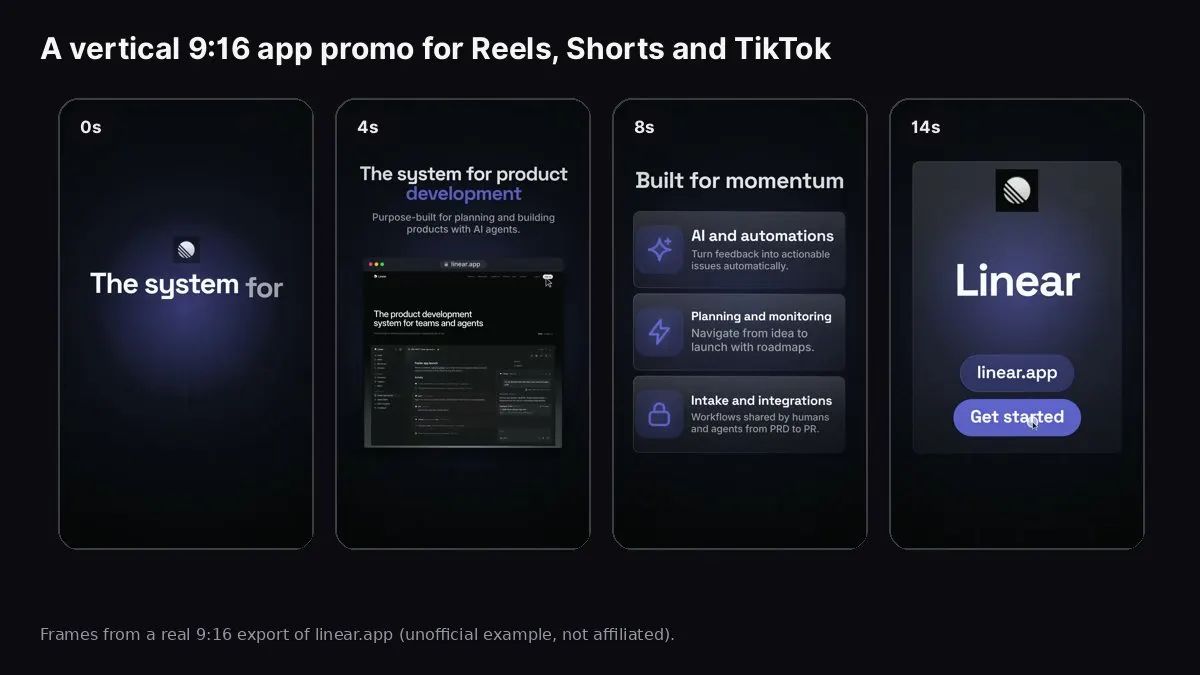
Frames from a real 9:16 export of linear.app made with Website to Promo Video. Unofficial example, not affiliated with Linear.
To make an app promo video, put your best app screens in a phone or browser frame, open with the one thing the app does, show two or three features as short captioned scenes, and end with where to get it. Make it 15 seconds in 9:16 for Reels, Shorts and TikTok, add a 16:9 cut for your website and YouTube, and make sure it reads with the sound off, because most people will watch it muted.
The image above shows frames from a real 15-second, 9:16 promo of linear.app made with our Website to Promo Video tool. It's an unofficial example to show the output; Linear had nothing to do with it. The tool read the public site, used its headline ("The system for product development"), turned three features into cards, put a live screenshot of the site in a phone frame, and closed on the logo, URL and the site's own call to action.
This guide covers what makes a short app promo work, where each version goes (including what app stores do and don't accept), a step-by-step build, and a checklist.
What makes an app promo work in a vertical feed
A vertical feed gives you about two seconds before a thumb scrolls past. App promos that hold attention share a few habits:
- The first frame says what the app is. A clear line of text or the app's main screen, not a logo animation.
- Real screens, big. On a phone, a full desktop screenshot is unreadable. Use phone screenshots, or crop desktop screens to one panel.
- One idea per scene. "Plan sprints." "Track issues." "Ship faster." Each scene says one thing in a few words.
- Text sits inside the safe area. Reels, Shorts and TikTok draw buttons, captions and the account name over the bottom and right edges. Keep important text in the middle of the frame.
- Motion on the beat. Cuts that land on the music feel intentional, even for viewers who later turn the sound on.
- A clear ending. The app name, an icon, and where to get it: the website, "Search [name] on the App Store", or a link in the bio.
Where an app promo goes (and where it doesn't)
- Instagram Reels, TikTok, YouTube Shorts: 9:16, 15 seconds. The main use. Upload natively.
- Your website hero: 16:9, 15 seconds, muted and looping.
- X and LinkedIn posts: 16:9 or 1:1, 15–30 seconds. Upload natively rather than linking.
- Product Hunt gallery: 16:9, 15–45 seconds, added as a YouTube link.
- Google Play listing: 16:9, short, added as a YouTube link.
- App Store app preview: device-specific sizes, 15–30 seconds, Apple's own rules (see below).
App store listings have their own rules. Apple's App Store app previews have strict technical specs and are meant to show footage captured from the app itself, so a motion-graphics promo usually isn't the right file for that slot. Google Play takes a YouTube link for its promo video. Check each store's current guidelines before uploading. The promo you make here is for everywhere else: social, ads, your website, launch posts and press kits.
Step 1: Gather your best screens
Even if your app is mobile-only, a simple landing page helps: the tool reads it for your headline, features, colours and logo. Then upload three to five screenshots from the app itself:
- The main screen with realistic content (not an empty state).
- The "aha" moment: the screen right after the app does its job (a finished plan, a generated result, a completed checkout).
- One or two feature screens that match the features you'll name.
Take screenshots on a clean device: full battery, no notifications, a neutral wallpaper if it shows.
Step 2: Make the video from your site
- Open Website to Promo Video and paste your app's landing page. Reading the site is free.
- Upload your app screenshots so the video shows the real app, not just your marketing page.
- Edit the brief: headline (what the app does, under eight words), three features with one short benefit each, an optional true proof point (rating or download count only if it's real and public), and the call to action ("Download free", "Get the app").
- Choose 9:16 and 15 seconds. Pick a look (Auto picks per brand) and a music genre that matches your audience: upbeat or hype for consumer apps, lo-fi or acoustic for calm productivity apps, corporate or ambient tech for B2B.
- Generate and watch it on your phone, at full screen, muted first and then with sound.
- Fix anything that's off by describing it in plain words, e.g. "the feature text at 6s is too close to the bottom".
- Export the MP4 in your browser, then re-lay out the same video for 16:9 for your website and YouTube.
Website to Promo Video
Paste your site → a branded 15–30s promo with your screenshots, brand and AI music. MP4 in your browser.
Step 3: Write captions and post copy
The video gets the scroll to stop; the caption does the rest.
- First line of the caption: the promise again, in plain words. "Plan your week in two minutes."
- Second line: who it's for. "For freelancers who juggle five clients."
- Call to action: "Free on iOS and Android, link in bio."
- Hashtags: two or three specific ones (#productivity #studyapp), not twenty.
- Cover frame: choose a frame with the app screen visible, not a blank transition.
Ideas for app promo videos beyond the launch
One promo isn't the end. Short cuts are cheap to remake, so test angles:
- One video per audience. "For students" and "for freelancers" versions with different headlines and features.
- One video per feature when you ship something new. See how to make a feature announcement video.
- A seasonal angle. "Plan your January" with the same app screens.
- A before/after angle. The old way (a messy spreadsheet) vs your app.
Post them a few days apart and keep the one with the best watch-through and clicks.
Checklist
- First frame states what the app does
- Real app screens, readable on a phone
- 3 to 5 scenes, one idea each, under 10 words of text per scene
- Important text inside the middle of the frame (clear of feed UI)
- Works muted; music on the beat for those who unmute
- Ends with app name, icon and where to get it
- 9:16 for Reels/Shorts/TikTok, 16:9 for website and YouTube
- No invented ratings, download counts or reviews
FAQ
How long should an app promo video be? 15 seconds for social feeds and ads. 30 seconds if you need to show a longer flow.
Can I use the promo as my App Store preview? Usually not. App Store app previews have their own specs and are meant to show footage captured from the app. Use a screen recording made to Apple's specs for that slot, and the promo for social, ads and your website.
What if my app has no website yet? Make a one-page site with your headline, three features, screenshots and store links. You need it for app store listings anyway, and it gives the video tool something to read.
Does the video include a voiceover? No. Website to Promo Video makes music-driven videos with on-screen text, which suits muted feeds.
How much does it cost? Reading your site and editing the brief are free. A promo uses credits from a pack (packs from $5, never expire), and failed runs are free. See the tool FAQ and our video aspect ratio guide for sizes.