How to Make Grass Greener in a Photo With AI
Green up a dry, patchy or dull lawn in a photo with AI: which photos work, which preset to pick, how to check the edges, and honest use on listings.
· 7 min read
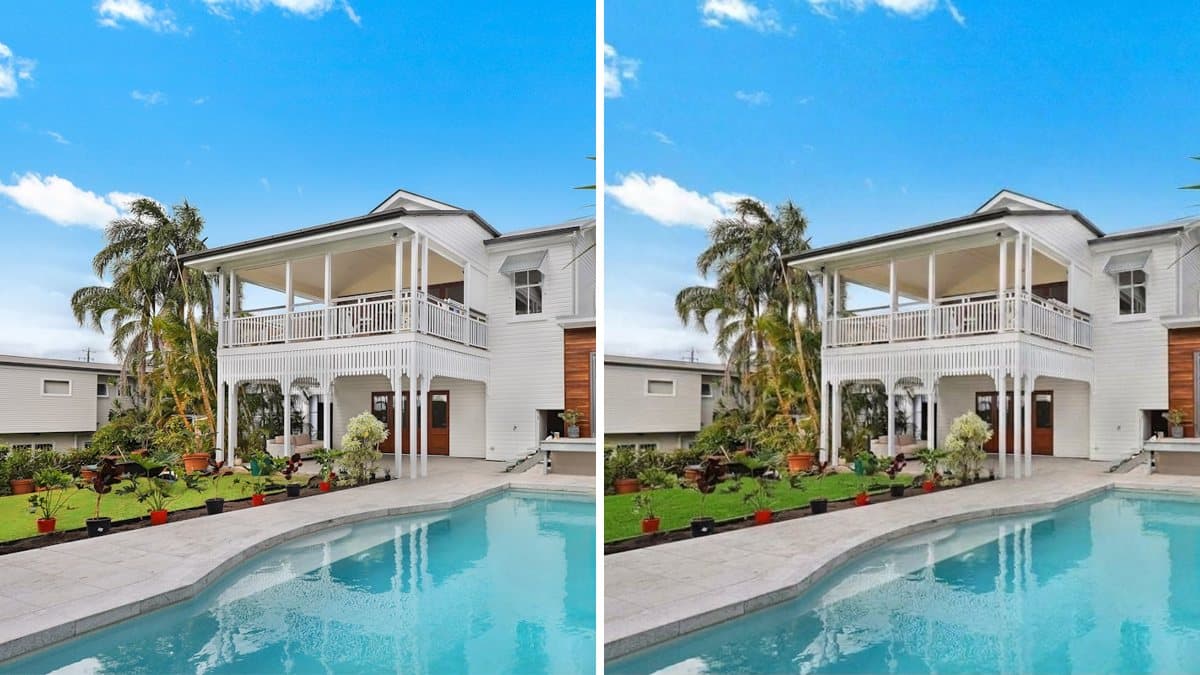
The original lawn (left) and the Lush green lawn preset (right): real output from Lawn Enhance.
To make grass greener in a photo, start with an outdoor shot where the lawn is clearly visible, then use an AI lawn enhancement tool to green up and fill in only the grass, while the house, driveway, trees and sky stay as they are. Then zoom in on the lawn edges, the garden beds and anything sitting on the grass to make sure nothing else changed.
The image above shows a real result from our Lawn Enhance tool with the Lush green lawn preset. The lawn on the left of the photo went from a yellowish lime green to a deeper, more even green. The house, the pool, the palms and the sky stayed the same. The change is subtle because the grass in this photo was already in fair shape. A brown or patchy lawn shows a much bigger difference.
This guide covers which photos work, which preset to pick, what to write in the notes, how to check the result, and how to use a greener lawn honestly on a real estate listing.
Which photos work best
Lawn enhancement works when the AI can clearly see the grass and tell it apart from paths, beds and hardscape.
Usually clean:
- Front yards and curb-appeal shots with dry, patchy, yellow or brown grass.
- Backyards and gardens where the lawn takes up a good part of the frame.
- Parks, fields and sports grounds in landscape or event photos.
- Photos taken on a dull day, where the grass looks grey-green and flat.
Harder:
- Very small patches of grass, like a thin strip by a sidewalk. There's less for the AI to work with, so the change may be barely visible.
- Grass covered by shadows, toys, hoses or leaves. Remove clutter first with Object Remover.
- Night and dusk shots. In low light the grass is hard to see, so the result is hard to judge.
- Indoor photos. There's no lawn to fix. Use Virtual Staging or Wall Color Changer for rooms.
Step 1: Start with the best version of the photo
- Use the original, full-size photo, not a screenshot or a copy from a chat app. Compression turns grass texture into mush.
- Straighten and crop first, so the framing is final before you edit.
- Keep the original. Work on a copy so you can go back.
The tool accepts JPG, PNG, WEBP, GIF and BMP (and HEIC when your browser can open it) up to 10 MB, and you can paste an image straight from your clipboard.
Step 2: Pick a preset
Open Lawn Enhance, drop in your photo and choose a preset:
- Lush green lawn: denser, even, richer green grass with brown and patchy spots repaired and a neat mowed look. This is the preset in the example above, and the one to use when you only want greener grass.
- Fresh mulch beds: dark fresh mulch, clean bed edges and healthy plants along the house. Use it when the beds look worse than the grass.
- Neat hedges: trimmed shrubs and clean hedge lines for a tidy, formal look.
- Desert xeriscape: swaps the lawn for gravel and drought-tolerant plants. Use it to show a low-water yard, not a greener one.
All four presets are told to keep the house, windows, doors, roof, driveway, camera angle and property layout exactly the same, and not to change the sky or the season.
Step 3: Fine-tune with landscaping notes
The Landscaping notes field is optional. Use it to say how the grass should look:
- "Greener, denser lawn, keep it natural, not neon"
- "Fix the brown patches near the driveway"
- "Freshly mowed stripes"
- "Darker mulch in the front beds"
Then click Enhance lawn. When it's done, click Download to save the image. Every result is also saved to Image History below the tool, where you can reopen it later or click Continue editing to use it as the source photo for the next edit.
Lawn Enhance
Green up patchy lawns and refresh curb-appeal landscaping — lush turf, mulch beds, neat hedges, or xeriscape — same house.
Step 4: Check the result
Zoom in to full size and compare it with your original:
- The color. Real grass isn't one flat shade. If it looks too bright or too even, run it again with a note like "natural green, keep some variation."
- The edges. Look where the lawn meets the driveway, paths, beds and fences. The green shouldn't spill onto paving or into the beds.
- Shadows. Shadows from the house and trees should still fall across the grass in the same places.
- Things on the lawn. Pots, plants and furniture should stay where they were. In the example, the potted plants along the bed are all still there, but a few shifted slightly.
- Everything else in the photo. The tool regenerates the whole image, so small details can shift. Check anything that matters to you, like signs, house numbers and the color of the house.
If a result is close but not right, run it again with a more specific note before switching presets.
Greener grass on real estate listings
A greener lawn is one of the most common listing photo edits. It makes a photo shot after a dry spell or on a grey day look like the property on a good day. Still:
- Don't show a lawn that isn't there. Greening up tired grass is one thing. Turning bare dirt into a full lawn, or showing a lawn where there's gravel, changes what a buyer will find.
- Keep the property the same. Only the landscaping should change. If the AI changed the house, the fence or the driveway, run it again or use the original.
- Follow your local rules. Some listing services and markets ask you to disclose edited photos. When in doubt, add a note like "landscaping digitally enhanced."
What else to fix before or after
- Grey or blown-out sky? Swap it with Sky Replacement. Our guide on how to replace the sky in a photo walks through it.
- Wrong season? If the trees are bare and the whole yard looks like winter, Season Change turns the scene into spring, summer, autumn or winter, including the foliage and light, not just the lawn.
- Want a twilight shot? Day to Dusk turns a daytime exterior into an evening photo with lit windows.
- Clutter on the lawn? Clear bins, hoses and toys first with Object Remover. See how to remove an object from a photo.
What it costs
Each lawn enhancement uses about 155 credits, because image models cost more to run than text. New accounts get 100 free credits, which isn't quite enough for one lawn enhancement, so you'll need a credit pack for your first one. The $5 Starter pack has 5,000 credits, enough for about 32 photos. If the model doesn't return an image, the run isn't charged. The same credits work across all the tools on Many AI Tools. See pricing for all packs.
Quick answers
How do I make grass greener in a photo? Upload the photo to Lawn Enhance, pick Lush green lawn and click Enhance lawn. Add a note like "natural green, fix the brown patches" if you want a specific look.
Do I need to select or mask the grass? No. The tool finds the lawn on its own. You only pick a preset and, if you want, describe the look in the notes.
Will it change the rest of my photo? The tool is told to keep the house, driveway, trees, sky and layout exact. Because it regenerates the whole image, small details can shift, so compare the result with your original.
Can it replace dead grass completely? It repairs brown and patchy spots and greens up dull turf. If you're turning bare dirt into a full lawn on a listing photo, that's no longer an honest edit of the property.
Lawn Enhance or Season Change? Lawn Enhance keeps the season and sky and only fixes the landscaping. Season Change rewrites the whole scene into a different season.
How much does it cost? About 155 credits per photo. Credit packs start at $5 for 5,000 credits, about 32 lawn enhancements.