How to Virtually Stage an Empty Room Photo With AI
Turn a vacant listing photo into a furnished room: how to shoot it, pick a style, check the output, and disclose virtual staging on your listing.
· 6 min read
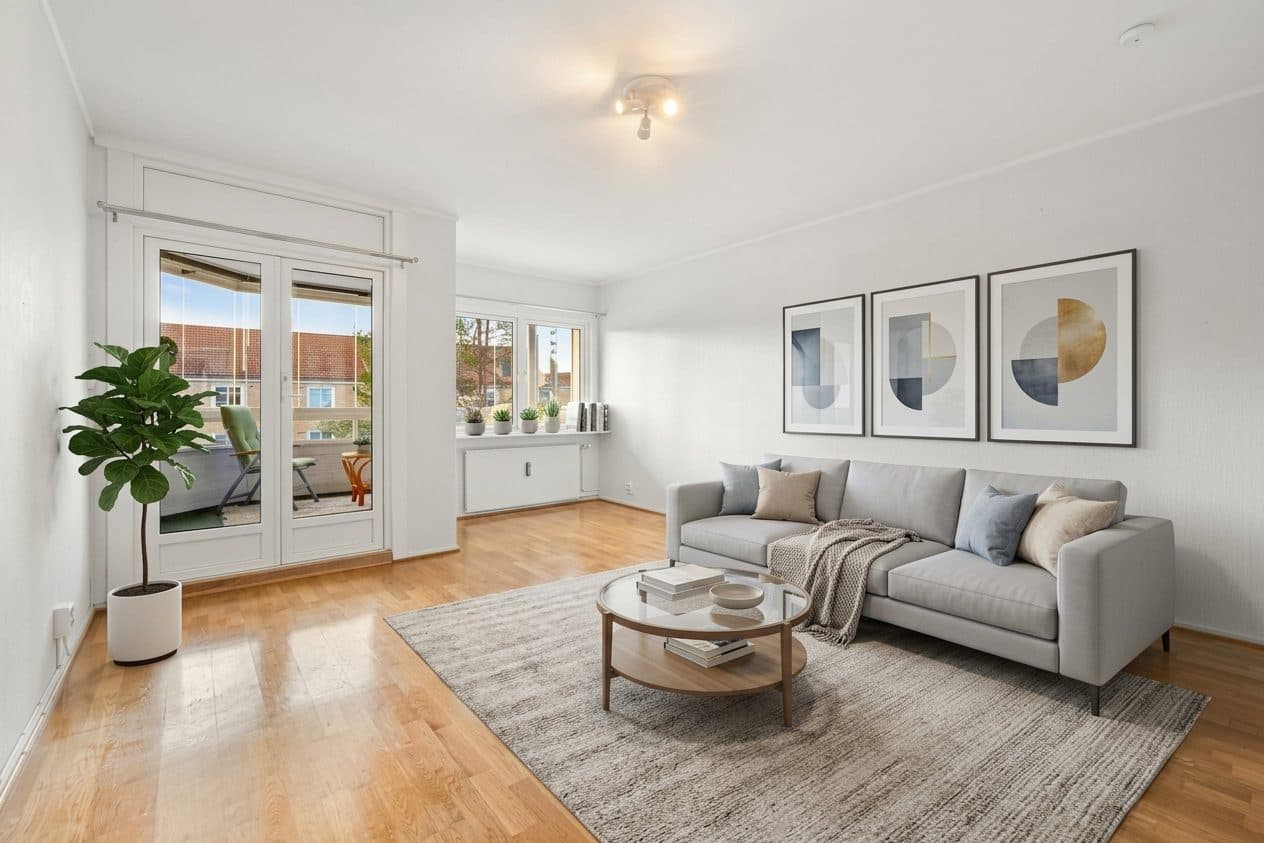
Real output from Virtual Staging.
Empty rooms photograph badly. Bare walls and floors make a space look smaller and colder than it is, and buyers scrolling a listing find it hard to tell whether a bed and a desk will fit. Virtual staging solves that by adding furniture to the photo instead of to the house.
Here is a real result from Virtual Staging using the Modern preset on a vacant living room:
Example: vacant living room → Modern staging preset (real Many AI Tools result).
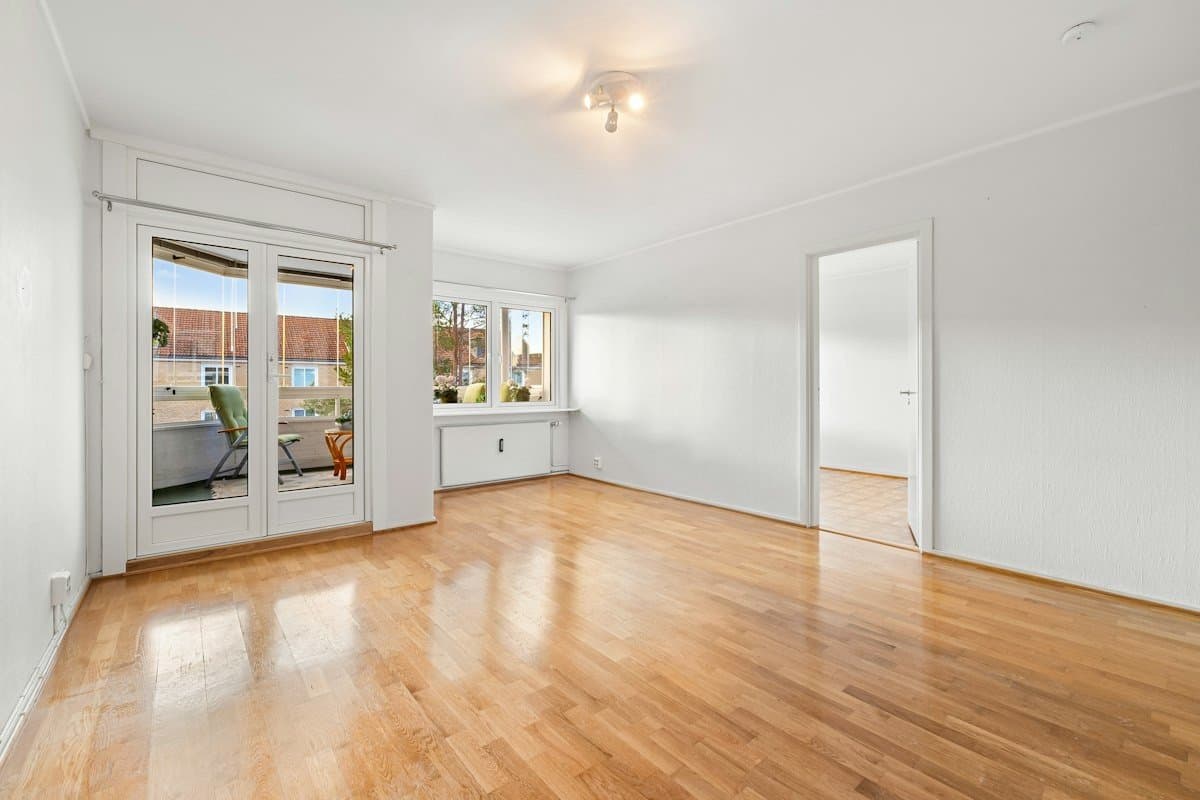 BeforeAfter
Everything that belongs to the house stayed put: the balcony doors, the window and radiator, the door to the next room, the ceiling light and the parquet floor. What was added is furniture and décor: a gray sofa with cushions and a throw, a round coffee table, a rug, a fiddle-leaf fig, three framed prints, and some small plants and books on the windowsill.
Below is how to get results like that, and how to publish them without getting in trouble with your MLS.
Step 1: Take a photo that stages well
The model works from what's in the frame, so the photo does most of the work.
- Clear the room completely. Boxes, ladders and cleaning gear confuse the model. If you can't move something, erase it first with Object Remover.
- Shoot from a corner or doorway at about chest height, with the camera level. Tilted verticals make the added furniture look like it is sliding.
- Show the floor. Furniture needs floor to stand on. A frame that is mostly ceiling and wall leaves little room to place a sofa or bed.
- Use daylight. Open the blinds and turn on the room lights. A dark photo gives a dark, flat result.
- One room per photo. An open-plan shot that covers a kitchen and a living area at once is harder to furnish sensibly.
Step 2: Choose a style
Open Virtual Staging, upload the photo and pick one of four styles:
- Modern: contemporary sofa or bed, simple tables, subtle art and plants. A safe default for most listings.
- Scandinavian: light wood, linen, minimal décor and plenty of air. Works well in bright, white rooms like the one above.
- Traditional: upholstered seating, wood furniture, lamps and a rug. Suits older homes and buyers looking for warmth.
- Luxury: richer materials, statement lighting and curated décor for high-end listings.
Match the style to the home and the likely buyer, not to your own taste. A luxury set in a starter apartment looks wrong and sets the wrong expectations.
Step 3: Steer it with Notes
The optional Notes field lets you say what you want, in plain words:
- "Bedroom: queen bed, two nightstands, no desk"
- "Gray sofa, no dining table"
- "Warmer wood tones, keep the window area clear"
- "Home office with a desk facing the window"
Naming the room type matters most when the photo doesn't make it obvious. A small empty room could be a bedroom, an office or a nursery.
Then click Stage room and download the result.
Step 4: Check it against the original
Put the original and the staged photo side by side and check:
- Nothing permanent changed. Walls, windows, doors, floors, ceiling, built-ins and the view should be identical. The prompt tells the model to keep them exact, but you are the one signing off on the listing.
- Scale looks right. A sofa that would never fit through the door, or a bed that fills the whole room, misleads buyers.
- No defects are hidden. If a rug lands on top of a damaged patch of floor, that's a problem even if the AI did it by accident.
- The details are clean. Look at legs touching the floor, shadows, and small items like books and plants for anything warped.
If a result fails any of these, run it again or change the Notes.
Step 5: Disclose it on the listing
Most MLSs allow virtual staging as long as it is clearly disclosed. Rules differ between MLSs and change over time, so check your own MLS photo policy. Common practice that keeps you safe almost everywhere:
- Put a small "Virtually staged" label on the image itself, where it survives thumbnail crops.
- Say so in the photo caption or listing remarks.
- Include the original, empty photo in the listing too.
- Keep both files, so you can show what changed if anyone asks.
Disclosure also helps the showing. Buyers who know the room was staged online won't feel misled when they walk into an empty room.
Related jobs
- The room is already furnished but dated? Use Interior Redesign to restyle existing furniture instead of adding new pieces.
- Just want to preview a paint color? Wall Color Changer changes only the walls.
- Exterior shots: Day to Dusk, Sky Replacement and Lawn Enhance cover the outside of the listing. Disclose those edits as well.
Virtual Staging
Furnish empty rooms for real-estate listings — modern, Scandinavian, traditional, or luxury.