How to Make a Photo Wider Without Stretching It
Need more room around a tight crop? Use AI outpainting to widen a photo for a banner, story or square post without distorting the subject.
· 5 min read
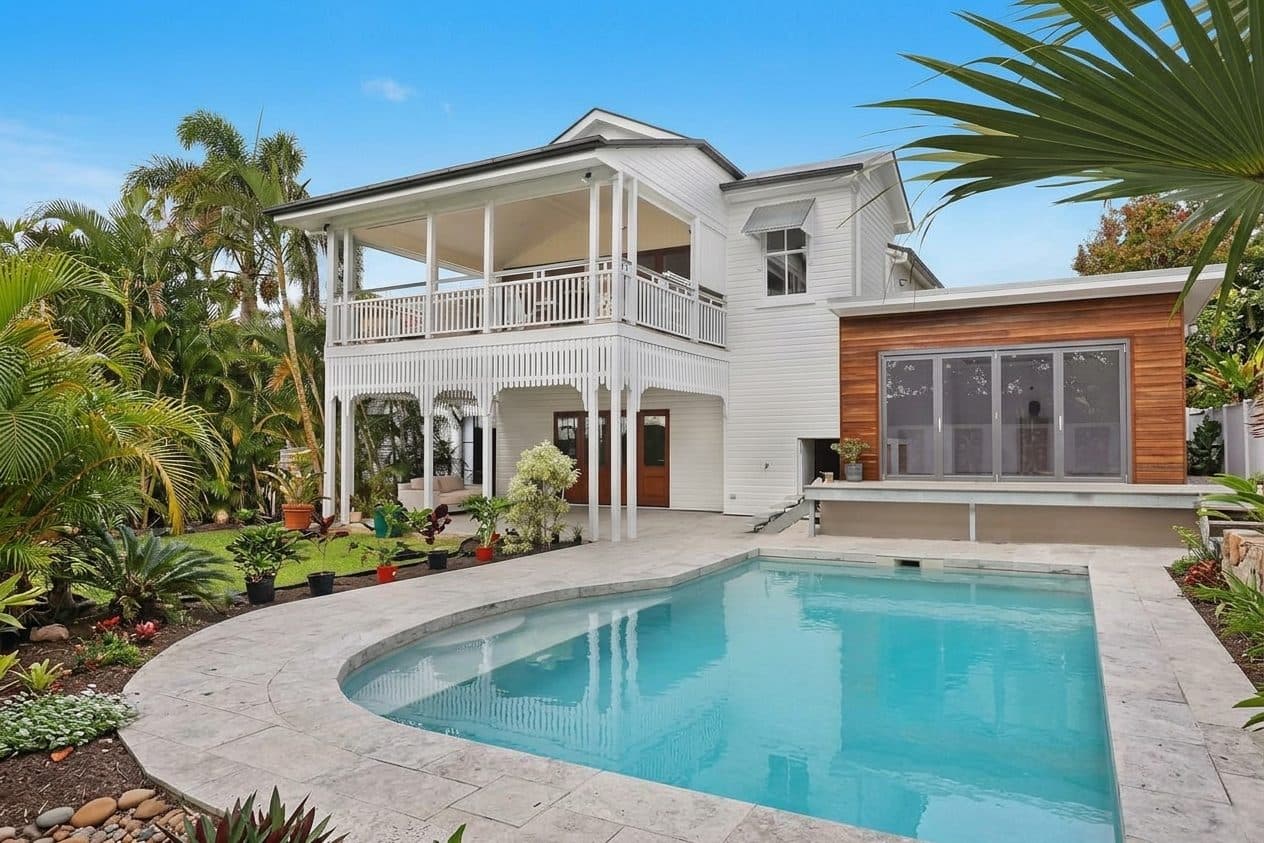
Real output from Generative Expand.
You have a good photo, but the crop is too tight. It needs to be a 16:9 banner, a 9:16 story or a square post, and every option is bad: crop into the subject, stretch it, or pad it with blurry bars.
The fix is outpainting (also called uncropping or generative expand). Instead of stretching the pixels you have, the AI paints new scenery beyond the edges that continues the sky, ground, walls and lighting of the original.
Here is a real result from Generative Expand with the Zoom out preset. The original crop cut off the left side of the house and most of the pool:
Example: tight crop → Zoom out preset (real Many AI Tools result).
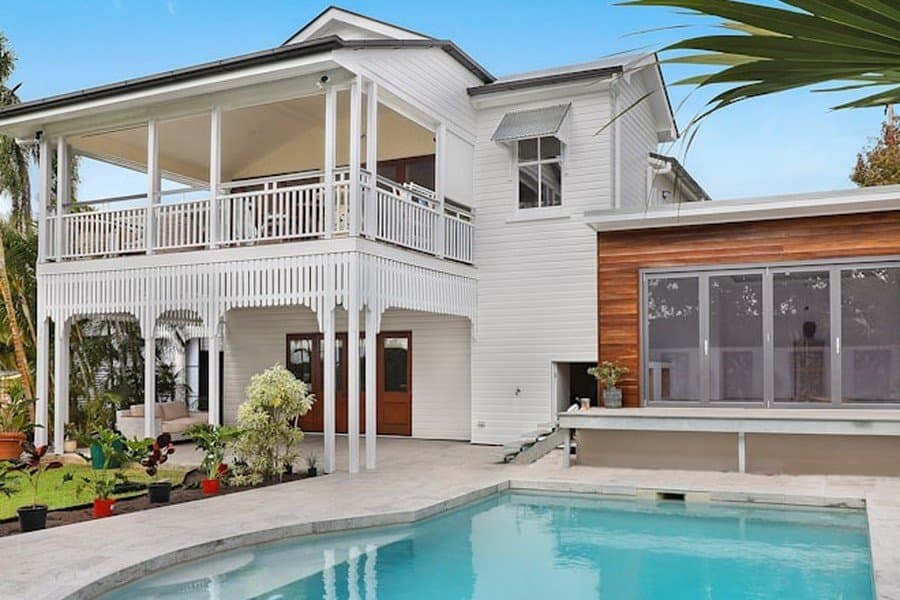 BeforeAfter
The expanded version shows the whole veranda, the palms and garden beds on the left, the full curve of the pool with its paving, and more sky. Nothing in the house was stretched or squashed.
Why stretching and cropping don't work
- Stretching (resizing to a new aspect ratio without keeping proportions) makes people look wide and circles look like eggs. Viewers notice immediately.
- Cropping to a wider shape throws away the top and bottom, which often means cutting off heads or the product.
- Blurred side bars keep the subject intact but look like a placeholder.
Outpainting is the only one of these that gives you a real, full-frame image in the new shape.
Step 1: Choose a source with room to grow
Expansion works best when the edges of your photo show something easy to continue:
- Sky, water, grass, sand, plain walls, floors and foliage extend cleanly.
- Busy edges, such as a crowd, text on a sign or a half-visible car, are harder. The model has to invent what the rest of them looks like.
- Use the sharpest version you have. If the photo is soft or noisy, run it through Photo Enhancer first so the new edges have a clean base to match.
Step 2: Pick the shape you need
Open Generative Expand, upload the photo and pick a preset:
- Widen landscape: extends left and right to roughly 16:9. Use it for website banners, YouTube thumbnails and slide backgrounds.
- Tall story: extends top and bottom to roughly 9:16 for Instagram Stories, Reels covers and TikTok.
- Square social: extends toward 1:1 for feed posts and product grids.
- Zoom out: adds space on all four sides, like stepping back with the camera. Good for posters or when you need room for a headline. This is the preset in the example above.
Step 3: Tell it what to fill with (optional)
By default the model continues whatever is at the edges. If you care about what goes in the new space, say so in Notes:
- "Extend the sky, leave clear space at the top for text"
- "Continue the wooden floor"
- "Plain studio background on both sides"
Then click Expand image and download the result.
Step 4: Inspect the seams
Zoom in where the original photo ends and the new area begins, and look for:
- Lines that don't line up: horizons, roof edges, fences, railings and tiles.
- Repeated patterns: the same bush or cloud copied twice is a giveaway.
- New people, faces or text: the preset prompts ask for none, but check anyway.
- Light direction: shadows in the new area should fall the same way as in the original.
If something is off, run it again, use a more modest preset, or erase the odd detail with Object Remover.
A word of caution for listings and products
Everything outside the original frame is invented. In the example, the left side of the house and the garden were never in the source photo. The AI made a believable guess. That is fine for a banner or a social post. It is not fine for a real-estate listing or a product page, where buyers rely on the photo to show what actually exists. For those, expand only into neutral background like sky or a studio backdrop, or reshoot wider.
Quick answers
Does it change my original subject? The prompts tell the model to keep the subject, faces and logos exactly as they are and generate only the new border. Still, compare fine details such as text and railings with your source before you publish.
Can I go from portrait to landscape? Yes, that's what Widen landscape is for. The bigger the change in shape, the more the AI has to invent, so start from a photo whose sides are simple.
I need the subject on a plain background instead. Then you don't need expansion. Use Background Remover to cut the subject out, and place it on any canvas size you like.
Generative Expand
Uncrop and outpaint photos — expand the frame with AI-matched background.