How to Replace the Sky in a Photo With AI
Swap a grey or blown-out sky for blue sky, a sunset, dramatic clouds or night with AI: which photos work, how to pick a sky, and how to check the edges.
· 7 min read
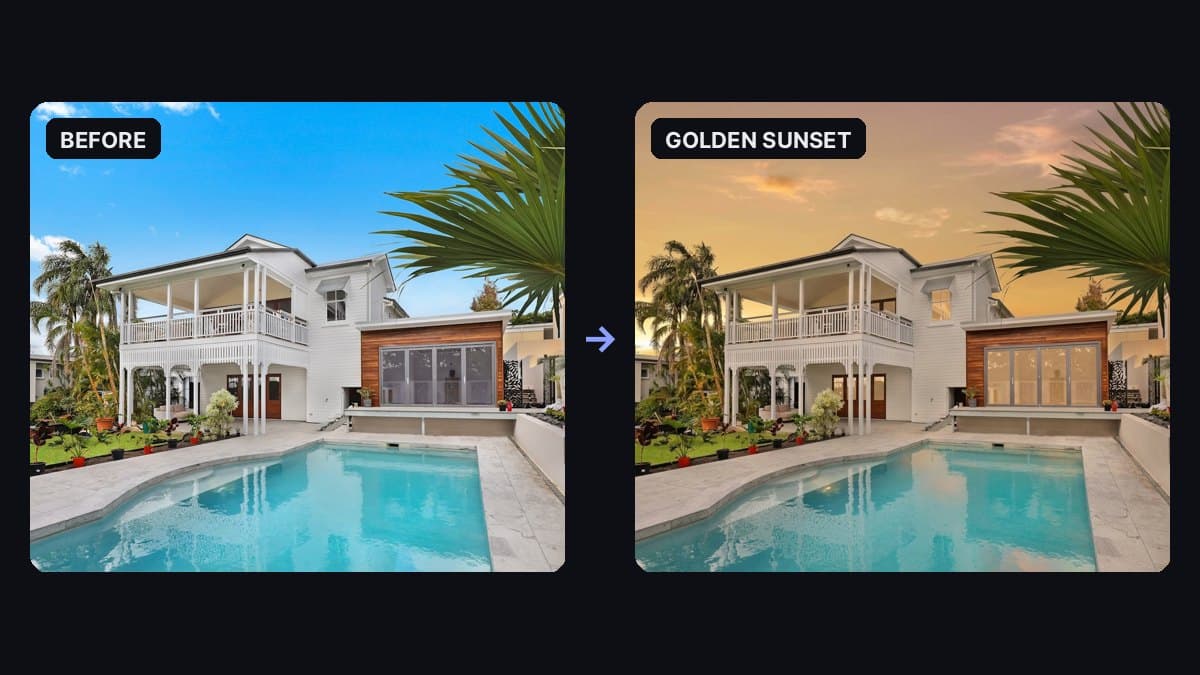
A midday blue sky (left) and the Golden sunset preset (right): real output from Sky Replacement.
To replace the sky in a photo, start with an outdoor shot where the sky is clearly visible, pick the new sky you want (a clear blue day, a golden sunset, dramatic clouds or a starry night), and let an AI sky replacement tool swap only the sky while keeping the house, trees, people and ground as they are. Then check the skyline edges, the reflections and the light on the buildings so the new sky matches the rest of the scene.
The image above shows a real result from our Sky Replacement tool with the Golden sunset preset. The midday blue sky behind the house became an amber and pink sunset with soft clouds. The house, the palms, the garden pots and the pool stayed in place, and the tool also warmed the scene to match: the glass doors, the upstairs window and the far end of the pool now pick up a sunset glow.
This guide covers which photos work, how to choose a sky, what to write in the notes, how to check the result, and when sky replacement is fine to use on a real estate listing.
Which photos work best
Sky replacement works when the AI can clearly tell where the sky ends and everything else begins.
Usually clean:
- House exteriors and curb-appeal shots with a grey, washed-out or overexposed sky.
- Landscapes and travel photos with an open horizon: beaches, fields, mountains, city skylines.
- Cars, boats and outdoor products photographed against open sky.
- Skies that are blown out to white. These are the most common reason to swap a sky, and the easiest for the AI to find.
Harder:
- Fine detail against the sky, like bare tree branches, palm fronds, hair and fences. The AI has to rebuild the gaps between them, so check these edges closely.
- Very little sky, like a narrow strip above a street. There's less to replace, so the change may be barely visible.
- Water and glass that reflect the sky. A lake or a wall of windows should reflect the new sky too. The tool tries to match reflections, but look at them closely.
- Indoor photos. A sky through a window is a poor fit. Use Photo Relight to change the lighting of a room instead.
Step 1: Start with the best version of the photo
- Use the original, full-size photo, not a screenshot or a copy from a chat app. Compression blurs the skyline edge.
- Straighten and crop first. A tilted horizon looks more obvious once the sky is new.
- Keep the original. Work on a copy so you can go back.
The tool accepts JPG, PNG, WEBP, GIF and BMP (and HEIC when your browser can open it) up to 10 MB, and you can paste an image straight from your clipboard.
Step 2: Pick a sky
Open Sky Replacement, drop in your photo and choose a preset:
- Blue sky: a clear bright blue sky with soft white clouds. The safest choice for listings and product photos, because it matches daytime light.
- Golden sunset: warm amber and soft pink with a low sun glow. This is the preset in the example above. It also warms reflections and the light along the horizon.
- Dramatic clouds: layered, high-contrast clouds for a storm-edge look. Good for landscapes, cars and moody travel shots.
- Night stars: a deep blue-black sky with visible stars. It also darkens the upper part of the scene so the night looks believable.
Match the sky to the light already in your photo. Look at the shadows: short, sharp shadows mean midday sun, so Blue sky will look the most natural. A sunset or a night sky over a scene lit by bright midday sun can look staged, because the shadows and highlights still say noon.
Step 3: Fine-tune with sky notes
The Sky notes field is optional. Use it to steer the mood of the new sky, not to edit other parts of the photo:
- "Deeper blue, fewer clouds"
- "Warmer amber sunset, sun low on the left"
- "Soft clouds, no dark storm clouds"
- "Night sky, no moon"
Then click Replace sky. When it's done, click Download to save the image. Every result is also saved to Image History below the tool, where you can reopen it later or click Continue editing to use it as the source photo for the next edit.
Sky Replacement
Replace grey or blown-out skies with blue day, sunset, clouds, or night.
Step 4: Check the result
Zoom in to full size and compare it with your original:
- The skyline edge. Look along rooflines, treetops and palm fronds for a halo, a blur or a thin line of the old sky.
- Gaps in trees and fences. The new sky should show through the gaps between leaves, branches and railings, not the old one.
- Reflections. Water, windows and glossy car paint should reflect the new sky. In the example, the pool and the glass doors picked up the sunset color.
- Light on everything else. A warm sunset should cast a little warm light on walls and the ground, and a night sky should leave the scene darker. If the house looks lit for a different time of day than the sky, try Blue sky or say what you want in the notes.
- Everything else in the photo. The tool regenerates the whole image, so small details can shift. In the example, the glass doors went from showing the room behind them to a warm, lit look, and the whole scene became a little warmer. Check anything that matters to you, like signs, logos, faces and the color of the house.
If a result is close but not right, run it again with a more specific note before switching presets.
Sky replacement on real estate listings
A brighter sky on a listing photo is common practice. It makes a dull, grey shoot day look like the property on a good day, without changing the property itself. Still:
- Don't change the property. Only the sky should be new. If the AI changed the roof, the windows or the garden, run it again or use the original.
- Don't hide what's there. Sky replacement isn't a way to remove a power line, a cell tower or a building next door. Buyers will see those in person.
- Follow your local rules. Some listing services and markets ask you to disclose edited photos. When in doubt, add a note like "sky digitally enhanced."
For a full twilight listing photo with lit windows and a dusk sky, Day to Dusk is made for that job. Sky Replacement only swaps the sky, while Day to Dusk changes the whole scene to evening. For more listing photo edits, see our guide on how to virtually stage an empty room.
What else to fix before or after
- Clutter in the shot? Remove bins, cars or hoses with Object Remover first, then replace the sky. Our guide on how to remove an object from a photo walks through it.
- Tired lawn? Lawn Enhance greens up patchy grass on exteriors.
- Need it sharper? Use Photo Enhancer last, after the sky is done.
What it costs
Each sky replacement uses about 155 credits, because image models cost more to run than text. New accounts get 100 free credits, which isn't quite enough for one sky replacement, so you'll need a credit pack for your first one. The $5 Starter pack has 5,000 credits, enough for about 32 photos. If the model doesn't return an image, the run isn't charged. The same credits work across all the tools on Many AI Tools. See pricing for all packs.
Quick answers
How do I change a grey sky to blue? Upload the photo to Sky Replacement, pick Blue sky and click Replace sky. Add a note like "deeper blue, a few soft clouds" if you want a specific look.
Do I need to select or mask the sky? No. The tool finds the sky on its own. You only pick the new sky and, if you want, describe it in the notes.
Will it change the rest of my photo? The tool is told to keep everything except the sky exact, and to match the lighting at the horizon. Because it regenerates the whole image, small details and the overall warmth can shift, so compare the result with your original.
Can I add a sunset to a daytime photo? Yes, with Golden sunset. It works best when the photo wasn't taken in harsh midday sun, since strong shadows can give away the real time of day.
Sky Replacement or Day to Dusk? Sky Replacement only swaps the sky. Day to Dusk turns the whole scene into evening, with a dusk sky, lit windows and twilight light.
How much does it cost? About 155 credits per photo. Credit packs start at $5 for 5,000 credits, about 32 sky replacements.