Best AI Browser Agents for Chrome in 2026 (Compared)
Claude in Chrome, Gemini auto browse, Comet, Nanobrowser and a free no-API-key option compared: where each runs, what it costs to start, and safety tips.
· 8 min read
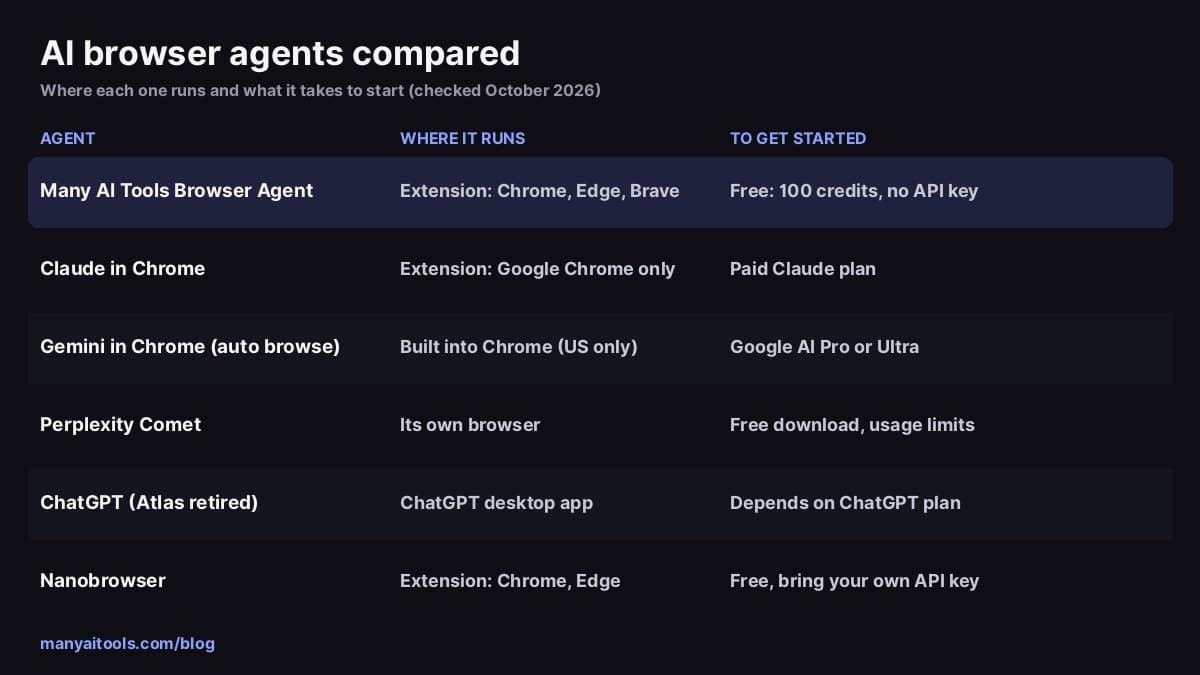
Summary of the comparison below, checked against each maker's pages in October 2026.
An AI browser agent is software that works on web pages for you: it reads the page, clicks, types into fields and moves between tabs until a task is done. In 2026 there are a handful of real options, and they differ in three ways that matter most: where the agent runs, what you have to pay or set up before the first task, and how much control you keep.
We make one of them, Browser Agent, so keep that in mind as you read. Every other entry below is described from its maker's own help pages and store listings, checked in October 2026. Prices and availability change often, so confirm on the vendor's site before you buy.
Quick picks
- Free, in the Chrome you already use, with no API key: Many AI Tools Browser Agent.
- You already pay for Claude: Claude in Chrome.
- You pay for Google AI Pro or Ultra and live in the US: Gemini in Chrome with auto browse.
- You're happy to switch browsers: Perplexity Comet.
- You want open source and already have an API key: Nanobrowser.
- You're a developer building automation into a product: an open-source framework such as Browser Use.
1. Many AI Tools Browser Agent
Browser Agent is a free extension for Chrome, Edge, Brave and other Chromium browsers on desktop. You describe a task in the side panel, for example "fill in this form with my name and email, then stop before submitting", and it works through the pages in your normal, signed-in browser. Tasks can also run on a schedule in the background, as long as the browser is open.
- To get started: install the extension and sign in with Google in the side panel. You get 100 free credits, which is about 6 tasks at roughly 15 credits each.
- Cost after that: credit packs from $5, with no subscription. The same credits work across every other tool on Many AI Tools.
- API key: none. It runs on hosted credits, so there is nothing to paste or configure.
- Watch out for: it's desktop only (no Firefox, Safari or phones), and like every agent here it acts with your logged-in accounts, so write "stop before submitting" into anything important.
The step-by-step setup guide walks through installing it and running your first three tasks.
Browser Agent
Free AI browser agent Chrome extension — automate forms, data entry, and scheduled web tasks without pasting an API key.
Install on desktop Chrome, Brave, or Edge — then sign in for 100 free credits.
2. Claude in Chrome
Anthropic's extension puts Claude in a Chrome side panel where it can read the page, click, type, navigate and fill forms. It can work across several tabs that you drag into its own tab group, and it supports scheduled tasks. You can have it ask before it acts on each site, or let it keep going while a separate safety check reviews each consequential action.
- To get started: a paid Claude plan (Pro, Max, Team or Enterprise). There is no free plan access.
- Where it runs: Google Chrome on desktop only. Anthropic says it isn't supported on other Chromium browsers or on mobile.
- Good fit: you already pay for Claude and want the same assistant, with your skills and connectors, inside your browser.
- Watch out for: Anthropic's own help page describes browser use as "still risky" and recommends starting on sites you know.
3. Gemini in Chrome (auto browse)
Gemini is built into Chrome itself, and its auto browse feature lets it complete multi-step tasks such as filling a shopping cart or booking a reservation. Google says it asks for confirmation before sensitive steps like purchases or posting on social media.
- To get started: a Google AI Pro or Google AI Ultra subscription on a personal Google account.
- Where it runs: Chrome on desktop, and on supported Android phones. For now auto browse is US only, for people 18 and over, with Chrome set to English.
- Limits: Google lists up to 20 multi-step tasks a day on AI Pro and up to 200 on AI Ultra.
- Watch out for: it is still rolling out gradually, so you may not have it even on an eligible plan.
4. Perplexity Comet
Comet is a whole browser rather than an extension. Perplexity's assistant sits in a side panel and can carry out tasks on the pages you open, using the sites you're signed in to inside Comet.
- To get started: download the browser. It's free, with limits on how much agent work the free tier can do.
- Paid plans: Perplexity's paid plans raise those limits, and the top Max plan adds background assistants that run tasks in parallel without you watching.
- Good fit: you're open to moving your everyday browsing to a new browser.
- Watch out for: you have to switch browsers and sign in to your sites again, and the agent has the same access to those signed-in sessions.
5. ChatGPT (Atlas has been retired)
OpenAI launched its Atlas browser with an agent mode in October 2025, then retired it on August 9, 2026. OpenAI says browser-based agent work has moved into the ChatGPT desktop app and Codex, with a ChatGPT extension or sidebar for Chrome where available.
- To get started: the ChatGPT desktop app. Which agent features you get depends on your ChatGPT plan, so check OpenAI's current plan page.
- Good fit: you already live in ChatGPT and want web tasks to happen there.
- Watch out for: if you used Atlas, its bookmarks, tabs and history did not move over automatically.
6. Nanobrowser
Nanobrowser is a free, open-source (Apache-2.0) extension for Chrome and Edge. It runs in your signed-in browser and asks before it submits, sends, deletes or uploads anything.
- To get started: install it, then connect a model. You paste your own API key from a provider such as OpenAI, Anthropic, Google Gemini or OpenRouter, or run a local model on your computer.
- Cost: the extension is free. You pay your model provider directly for what each task uses, and long tasks on text-heavy pages cost more.
- Good fit: you want open source and full control over which model runs.
- Watch out for: you need an API key with billing set up (or a capable local model) before the first task, and the model must support tool calling.
7. Developer frameworks (Browser Use and similar)
If you're building automation into your own product, open-source frameworks such as Browser Use let you drive a browser with an AI model from code, and several offer paid hosted browsers. They are powerful, but they're libraries for developers rather than something you install and talk to. For your own weekly busywork, one of the extensions above is quicker to set up.
How to choose
Ask yourself three questions:
- Do you want to keep your current browser? If yes, pick an extension (Browser Agent, Claude in Chrome, Nanobrowser) or Gemini in Chrome. If you're happy to switch, Comet is an option.
- What are you already paying for? If you have Claude or Google AI Pro, try the agent that comes with it first. If you pay for none of them, a free option with included credits or your own key avoids a new subscription.
- Do you want to manage an API key? Nanobrowser gives you the most control but needs one. Browser Agent works out of the box on credits.
Whichever you pick, start with a small task you can check at a glance, such as "summarize this page in 5 bullet points", before you trust it with forms.
Safety: what every browser agent has in common
All of these agents act with your signed-in accounts, which is what makes them useful and also what makes them risky.
- Web pages can contain hidden instructions. A page or email can try to redirect an agent (this is called prompt injection). Keep agents off untrusted sites while you're signed in to sensitive accounts.
- Keep the last click. For payments, sending messages, deleting anything or submitting important forms, tell the agent to stop and let you review.
- Check what comes back. Agents can misread busy pages. Spot-check names, numbers and links before you rely on them.
- Do sign-ins and human checks yourself, then hand the task back.
FAQ
What is the best free AI browser agent?
If you want something that works in your current Chrome without an API key or subscription, Browser Agent gives you 100 free credits when you sign in. If you're fine switching browsers, Comet has a free tier with limits. If you already have an API key, Nanobrowser is free and open source.
Do AI browser agents work in Chrome without installing a new browser?
Yes. Browser Agent, Claude in Chrome and Nanobrowser are Chrome extensions, and Gemini is built into Chrome. Comet is the main option that is its own browser.
Do I need an OpenAI or other API key?
Only for bring-your-own-key tools like Nanobrowser. Browser Agent runs on hosted credits, and Claude in Chrome and Gemini in Chrome are covered by their own subscriptions.
Is ChatGPT Atlas still available?
No. OpenAI retired Atlas on August 9, 2026 and moved browser agent features into the ChatGPT desktop app and Codex.
Can an AI browser agent run tasks on a schedule?
Some can. Browser Agent and Claude in Chrome both support scheduled tasks, and Comet's Max plan adds background assistants. The browser generally has to be running for an extension's scheduled task to fire.
Are AI browser agents safe?
They're as safe as the instructions and sites you give them. Use them on sites you trust, keep irreversible steps for yourself, and review the result before you act on it.
Browser Agent
Free AI browser agent Chrome extension — automate forms, data entry, and scheduled web tasks without pasting an API key.
Install on desktop Chrome, Brave, or Edge — then sign in for 100 free credits.