How to Use an AI Browser Agent in Chrome (Free, No API Key)
What an AI browser agent is, real tasks it can do (forms, research, pulling data from pages), and how to install one in Chrome and run your first task.
· 7 min read
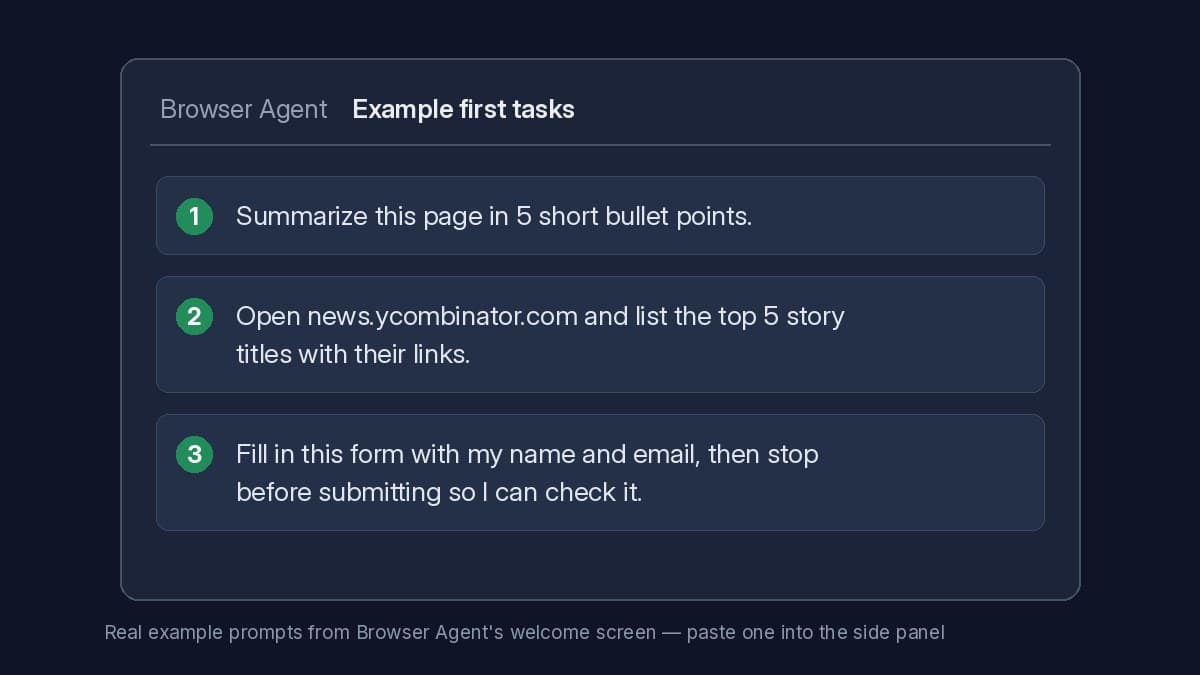
Example first tasks from the Browser Agent welcome screen.
A lot of desk work is the same few clicks in a browser: open a site, find the right field, copy a value, paste it somewhere else, repeat. An AI browser agent does those clicks for you. You describe the job in plain English, and it works through the pages in your own browser.
This guide explains what an AI browser agent is, which tasks it is good at, how to install a free one in Chrome and run your first task, and where you should keep a hand on the wheel.
What is an AI browser agent?
An AI browser agent is a browser extension that can act on web pages, not just talk about them. Given a task, it can open tabs, read what is on the page, click buttons and links, type into fields, pick options from dropdowns, tick checkboxes and submit forms. It keeps going step by step until the task is done, then reports back.
That is the difference from a chatbot. A chatbot answers questions about text you paste into it. An agent goes to the page and does the work there.
Because the agent runs inside your browser, it uses the sites you are already signed in to. There is no separate robot browser to log in to, and no script to write.
What you can do with a browser agent
Good tasks are repetitive, follow the same steps each time, and happen on websites you already use. A few real examples:
- Fill in a form. "Fill in this form with my name and email, then stop before submitting so I can check it." Useful for sign-ups, applications and the same contact form you complete every week.
- Research across tabs. "Open the pricing pages of [tool A], [tool B] and [tool C] and tell me the cheapest plan that includes [feature]." The agent opens each site in its own tab, reads them, and gives you one answer.
- Compare prices. "Find [product] on [store A] and [store B] and list the price and delivery cost on each." Name the stores you trust, so it checks the same places you would.
- Pull data off a page. "Open news.ycombinator.com and list the top 5 story titles with their links." Ask for one line per item (for example name, price, link) and the result is ready to paste into a spreadsheet.
- Summarize what you are reading. "Summarize this page in 5 short bullet points."
- Run a check on a schedule. Set a task to run at a set time, for example looking at a status page, an order tracker or a listings page, and reporting what it finds.
The quickest way to get a good result is to be specific: name the site, say exactly what you want back, and say where it should stop.
How to install an AI browser agent in Chrome
These steps use Browser Agent, the free Chrome extension from Many AI Tools. It does not ask you to paste an OpenAI or any other API key. Usage runs on hosted credits, and you get 100 free credits when you sign in with Google.
- Add the extension. Open Browser Agent on a desktop computer and click Add to Chrome — Free, or install it from the Chrome Web Store. It works in Chrome, Brave, Edge and other Chromium-based browsers.
- Open the side panel. After install, the extension opens a welcome page with three quick steps. Open the panel with the toolbar icon or the keyboard shortcut: Alt + Shift + 9 on Windows, Option + Shift + 9 on Mac.
- Sign in inside the panel. Use Sign in with Google in the side panel itself (not the website header) to unlock your 100 free credits. If the Google window doesn't appear, allow pop-ups for the site and try again, or use the email link in the panel.
Browser Agent
Free AI browser agent Chrome extension — automate forms, data entry, and scheduled web tasks without pasting an API key.
Install on desktop Chrome, Brave, or Edge — then sign in for 100 free credits.
Run your first task
Start with something you can check at a glance. The welcome page suggests three first tasks, and each one teaches you something different:
- "Summarize this page in 5 short bullet points." Open any article first, then paste this. It shows the agent can read the page you are on.
- "Open news.ycombinator.com and list the top 5 story titles with their links." This one opens a site on its own and pulls data out of it.
- "Fill in this form with my name and email, then stop before submitting so I can check it." Open a form you actually need to fill, then paste this. It shows the agent typing into a page, and it ends with you in control.
After each task, look at the result next to the page. If something is off, say what to change in the next message, for example "use my work email instead" or "only include stories with more than 100 points". Once a task works the way you want, you can reuse the same wording or set it to run on a schedule.
Tips for prompts that work
- Name the website. "Open [site]" is faster and more reliable than "find a site that…".
- Say what you want back. "A list with the title, price and link for each" beats "find me some options".
- Say where to stop. "Stop before submitting", "don't place the order", or "draft it but don't send" keeps the final click with you.
- Give the details only you know. Names, dates, order numbers, which account to use. The agent can't guess them correctly.
- Keep one job per task. Two small tasks are easier to check than one long one.
Limits and safety
A browser agent is powerful because it acts as you. That is also why it deserves the same care you would give someone borrowing your laptop.
- It uses your logged-in accounts. Whatever you are signed in to, the agent can reach. Only give it tasks on sites you would be happy to handle yourself.
- Keep irreversible steps for yourself. For payments, sending messages, deleting things or submitting anything important, write the stop into the task and review before you click. The agent speeds up the clicking; the approval stays with you.
- Check what it brings back. AI can misread a page, especially busy ones. Spot-check numbers, names and links against the page before you rely on them.
- Do sign-ins and checks yourself. If a site asks you to log in, confirm a code or prove you are human, handle that step yourself before you hand the task back to the agent.
- Scheduled tasks need a running browser. Tasks can run in the background with the side panel closed, but Chrome (or Brave or Edge) itself has to be open. Extensions can't run while the browser is quit.
- Desktop only. It is a Chromium desktop extension, so it does not run in Firefox, Safari or on phones.
AI browser agent vs AI browser assistant
They sound alike but do different jobs:
- Use Browser Agent when you want something done: take actions across pages, fill forms, collect data from several sites, or run a task on a schedule.
- Use Browser Assistant when you want to understand the page in front of you: ask questions about it, get a summary, or discuss an image, in a side panel next to what you are reading. It opens with Alt + Shift + 0 (Option + Shift + 0 on Mac).
Many people install both: the assistant for reading, the agent for doing. The Browser Assistant guide covers it in more detail.
Browser agent vs Selenium or Playwright
Selenium and Playwright are coding frameworks: you write a script with selectors and keep it working when the website changes. A browser agent is for people who don't want to write code. You describe the task in plain language, check the result, and run it again in your normal, logged-in browser. If you are a developer automating tests, a framework is still the right tool. If you want your own weekly busywork done, an agent is quicker to set up.
FAQ
Is the AI browser agent free?
Yes to start. Browser Agent is a free Chrome extension, and you get 100 free credits after signing in with Google in the side panel. If you need more, credit packs start at $5 and never expire.
Do I need an OpenAI or other API key?
No. Many free AI browser agent extensions ask you to bring your own API key. Browser Agent runs on hosted credits instead, so there is nothing to paste or configure.
Which browsers does it work in?
Chrome, Brave, Edge and other Chromium-based browsers on desktop.
Can it run tasks when I'm not watching?
Yes. Scheduled tasks run in the background, even with the extension panel closed, as long as the browser itself is running.
Do I need to know how to code?
No. You write the task the way you would explain it to a colleague. There are no scripts, selectors or browser drivers to maintain.
For setup questions, shortcuts and more answers, see the Browser Agent guide & FAQ.
Browser Agent
Free AI browser agent Chrome extension — automate forms, data entry, and scheduled web tasks without pasting an API key.
Install on desktop Chrome, Brave, or Edge — then sign in for 100 free credits.