How to Unblur a Photo (and What AI Can't Fix)
Sharpen a blurry photo with AI: why photos blur, what enhancement can and can't recover, which preset to pick, and how to check faces and text after.
· 8 min read
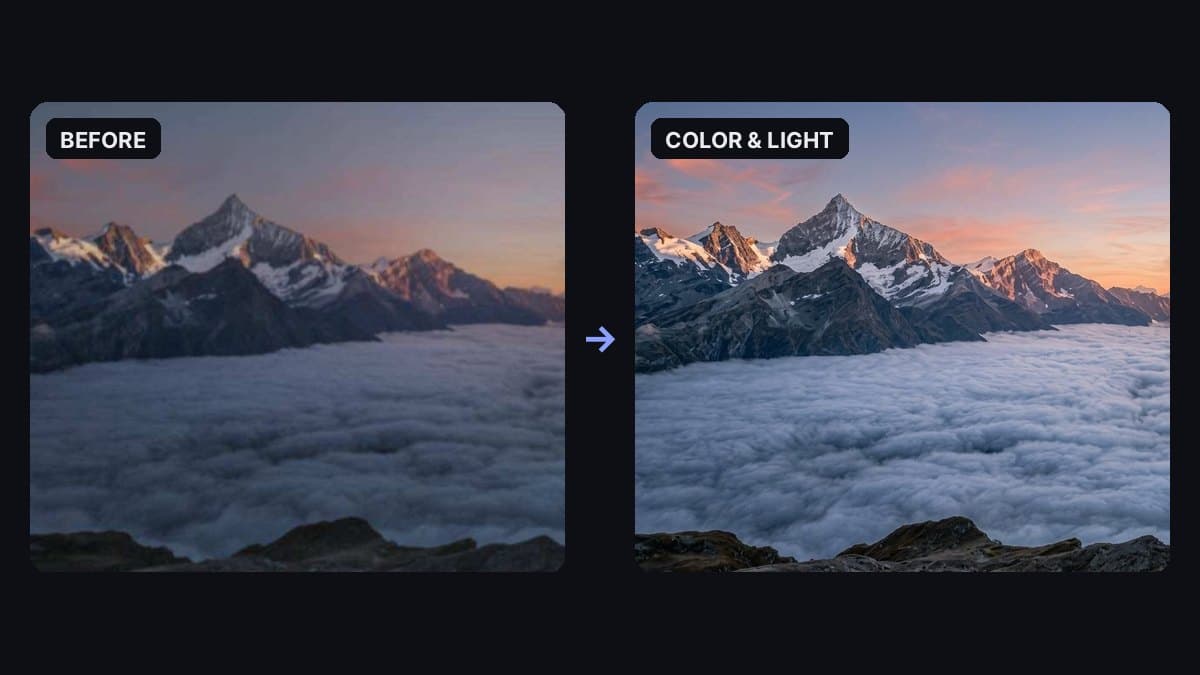
A soft, dark phone shot (left) and the Color & light preset (right): real output from Photo Enhancer.
To unblur a photo, start with the original, full-size file, figure out what kind of blur it has, and run it through an AI photo enhancer that sharpens edges and cleans up noise while keeping the subject the same. Then zoom in and check faces, text and fine detail, because AI sharpening rebuilds detail rather than finding the exact pixels the camera missed.
The image above shows a real result from our Photo Enhancer with the Color & light preset. The before is a soft, dark phone shot of mountains above a sea of clouds. In the after, the ridgelines and snow are crisper, the clouds have clear texture, and the sunset colors are brighter. Look closely and you'll also see that some of the cloud texture is new: the AI drew plausible detail where the original was a soft blur. That's how AI sharpening works, and it's the main thing to keep in mind when you use it.
This guide covers why photos blur, what AI can and can't recover, how to pick the right preset, and how to check the result.
Why photos come out blurry
The fix depends on the cause, so it helps to know which one you have.
- Camera shake. The camera moved while the shutter was open, usually indoors or at night when the shutter stays open longer. Everything in the photo is smeared in the same direction, often with doubled edges.
- Subject motion. The camera was steady but the subject moved: a child, a pet, a car, a hand mid-wave. The background is sharp and the subject is smeared.
- Missed focus. The camera focused on the wrong thing, like the wall behind a person instead of their face. One part of the photo is sharp and the part you care about is soft.
- Low light. Dark scenes push the camera to brighten the image, which adds grain (noise). Phones then smooth that grain away, and fine detail goes with it. The result looks soft and muddy rather than smeared.
- Compression and resizing. Photos sent through chat apps and social media are shrunk and compressed. Screenshots and thumbnails lose detail too, and enlarging a small image makes it look blurry. This is the most common kind of "blurry photo," and often the easiest to improve.
What AI can and can't fix
An AI enhancer doesn't reverse blur the way you'd rewind a video. It looks at the soft image and generates a sharper version that fits what it sees. That makes it good at some jobs and unreliable at others.
Usually improves well:
- Soft phone photos, slightly missed focus and mild camera shake
- Grainy, dark indoor or night shots
- Compressed images from chat apps, screenshots and small web images
- Landscapes, buildings, products, food and pets, where plausible detail looks right
Unreliable or not possible:
- Heavy motion blur. If a face or object is a long smear, there isn't enough left for the AI to rebuild it faithfully.
- Text, numbers and license plates. If you can't read it in the original, the AI may write different letters that look sharp but aren't what was there.
- Faces that are very small or very blurry. The AI can sharpen them, but it may draw a face that looks slightly different from the real person. Always compare with the original.
- Proof of anything. Because the detail is generated, an enhanced photo isn't evidence of what was in the scene. Don't use it to identify people, read documents or settle what happened.
If the photo matters and the moment can be repeated, a retake will always beat a fix.
Step 1: Start with the best version you have
- Find the original file. The copy on the phone or camera that took it is better than the one someone sent you, and much better than a screenshot. Each re-save and resize throws away detail.
- Crop out what you don't need, but don't shrink it. Keep the full resolution of the part you want.
- Keep the original. Work on a copy so you can compare and go back.
The tool accepts JPG, PNG, WEBP, GIF and BMP (and HEIC when your browser can open it) up to 10 MB, and you can paste an image straight from your clipboard.
Step 2: Pick a preset
Open Photo Enhancer, drop in your photo and choose a preset based on what's wrong with it:
- Fix blur: for soft or blurry photos. It restores edge clarity and gently removes noise while keeping skin and fabric texture natural. Start here for camera shake, missed focus and low-light softness.
- Upscale & sharpen: for small or low-res images, like compressed chat photos and screenshots. It sharpens fine detail for a cleaner, print-ready look.
- Color & light: for dark or dull photos. It brightens exposure, corrects white balance and enriches color. This is the preset in the example above, and on a soft, dark shot it also made the image look clearer.
- Portrait clean: for photos of a person. It keeps skin texture honest, makes eyes clear and sharp, and tidies the background without replacing it.
If you're not sure, start with Fix blur. If the photo is also dark, run Color & light on the result afterwards.
Step 3: Add a note if you need to (optional)
The Notes field is optional. Use it to point the tool at what matters:
- "Sharpen the face, keep skin natural"
- "Focus on the dog, leave the background soft"
- "Keep the grain, just reduce the blur"
Then click Enhance photo. When it's done, click Download to save the image. Every result is also saved to Image History below the tool, where you can reopen it later or click Continue editing to use it as the source photo for the next edit.
Photo Enhancer
Sharpen, upscale, and clean up blurry or dark photos in one click.
Step 4: Check the result
Zoom in to full size and compare it with your original side by side:
- Faces. Check the eyes, teeth and the shape of the face. The person should still look like themselves. If they don't, try Portrait clean or run it again.
- Text and logos. Signs, labels and screens are where AI is most likely to invent letters. If something reads differently than the original, don't trust it.
- Fine texture. Hair, grass, fabric and clouds should look natural, not painted or plastic.
- Things that weren't there. The tool is told not to add new objects, faces or text, but compare the two images for anything new or missing.
- Size. Results come back at about one megapixel (the example above is 1,264 × 843 pixels). That's plenty for screens, social posts and small prints, but if your original is a large camera file, the enhanced version may have fewer pixels than what you uploaded. Keep the original too.
If a result is close but not right, try a different preset or add a short note before running it again.
Tips for the best result
- Fix one thing at a time. Sharpen first, then fix color, rather than asking for everything in one note.
- Don't run it over and over. Enhancing an already enhanced photo tends to make it look over-processed. Go back to the original and try a different preset instead.
- Save it for photos that need it. Photos that are already sharp gain little, so you'll get more out of your credits on the soft ones.
- Prevent it next time. Brace the phone or set it down for low-light shots, tap the subject to focus, and send photos as files or originals rather than through chat apps that compress them.
When to use a different tool
- Old, scratched or faded prints? Use Photo Restore first. It's made for scans with scratches, stains and fading. Our guide on how to remove scratches from old photos walks through it, and you can sharpen with Photo Enhancer at the end.
- Black and white? Add color with Photo Colorize after restoring.
- Sharp but badly lit? Photo Relight changes the lighting mood of a photo without reshooting it.
- Want the background blurry on purpose? Blur Background adds a soft, portrait-style background.
What it costs
Each enhance uses about 155 credits, because image models cost more to run than text. New accounts get 100 free credits, which isn't quite enough for one enhance, so you'll need a credit pack for your first one. The $5 Starter pack has 5,000 credits, enough for about 32 photos. If the model doesn't return an image, the run isn't charged. The same credits work across all the tools on Many AI Tools. See pricing for all packs.
Quick answers
Can you really unblur a photo? Partly. AI can make a soft, slightly blurry or compressed photo look much sharper by rebuilding edges and detail. It can't bring back detail that was fully lost to heavy motion blur, and the new detail is a best guess, not the original.
How do I sharpen a blurry photo on my phone? Open Photo Enhancer in your phone's browser, upload the photo, pick Fix blur and tap Enhance photo. Nothing to install.
What's the best preset for a blurry face? Try Fix blur first, or Portrait clean for a photo of one person. Then check that the face still looks like the real person.
Can AI make blurry text readable? Don't rely on it. It may produce sharp letters that are wrong. If you can't read the text in the original, treat anything the AI shows as a guess.
Does it make the photo bigger? It sharpens and cleans up the image, and results come back at about one megapixel. A small, compressed image usually comes back larger and cleaner. A large camera file may come back with fewer pixels, so keep the original.
How much does it cost? About 155 credits per photo. Credit packs start at $5 for 5,000 credits, about 32 enhances.