How to Summarize a YouTube Video With AI (Free)
Summarize any YouTube video from its transcript with ChatGPT, Claude or Gemini, or paste the link for a free summary with clickable timestamps.
· 7 min read
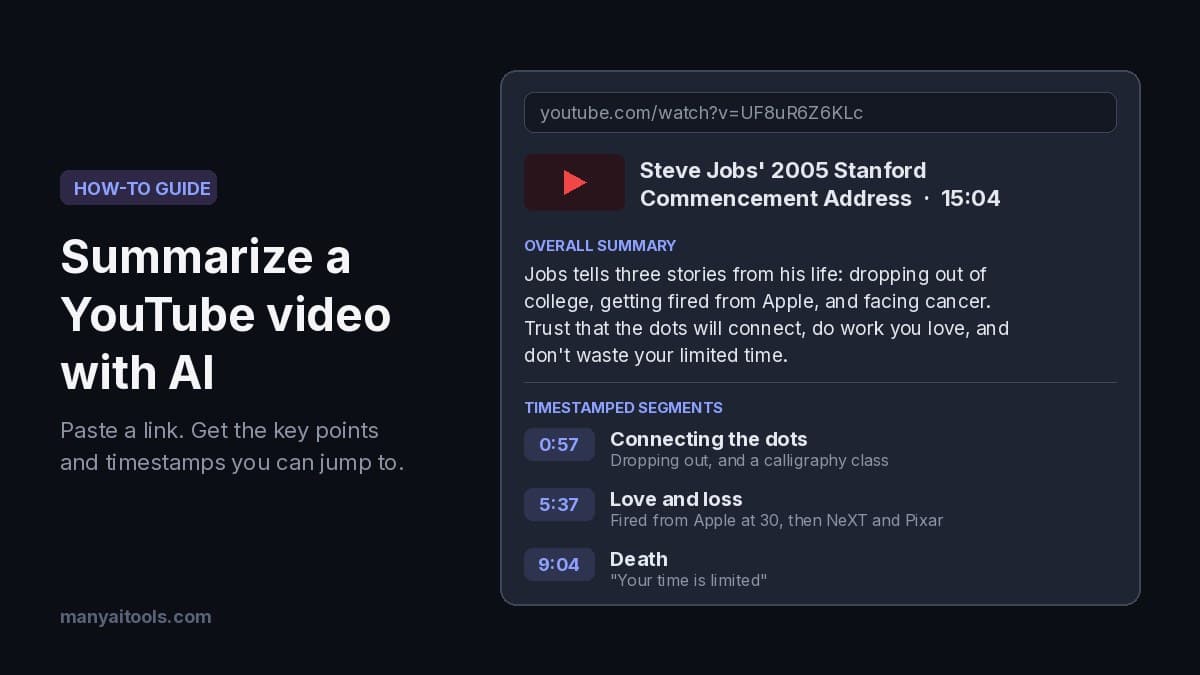
Example structured summary for a sample video on the YouTube Summarizer page.
The quickest way to summarize a YouTube video is to work from its transcript. Either copy the transcript into an AI chatbot with a clear prompt, or paste the video link into a summarizer that does the transcript step for you. Both take a minute or two, and both beat skimming at 2x speed and hoping you caught the important part.
A good summary is worth the effort. You can decide whether a 90-minute lecture deserves your evening, pull the three ideas you need from a podcast, or turn a tutorial into notes you'll actually reread. This guide covers how to do it by hand with free tools, where that approach breaks down, and a faster way that gives you timestamps you can click.
Method 1: Copy the transcript into ChatGPT, Claude or Gemini
Most YouTube videos have captions, either written by the creator or generated automatically. That text is all an AI needs.
- Open the video on a computer and click ...more under the title to expand the description.
- Scroll to the bottom of the description and click Show transcript. A panel opens next to the video with the text and a timestamp for each line. On the phone app it's in the same place: tap the description, then Show transcript.
- Keep the timestamps on. They let the AI tell you where each point is. If the panel shows text only, open its three-dot menu and turn timestamps back on.
- Select all the transcript text (click and drag from the first line to the last), copy it, and paste it into your chatbot along with one of the prompts below.
Prompt for key points with timestamps:
Below is the transcript of a YouTube video called "[video title]". Summarize it in 3 to 4 sentences. Then split the video into 4 to 8 sections. For each section, give the start timestamp, a short title, and 2 or 3 key points. Use only what's in the transcript. If something is unclear, say so instead of guessing.
[paste transcript]
Prompt for a TL;DR and action items (good for tutorials, meetings and talks):
Here is a video transcript. Give me a one-line TL;DR, then the 5 most useful takeaways as bullet points, then a list of any concrete steps, tools or numbers the speaker recommends, each with its timestamp. Skip the intro, sponsor reads and channel plugs.
[paste transcript]
Two small things make a big difference. Always include the video title, since it gives the AI context for names and jargon that auto-captions often spell wrong. And ask it to stick to the transcript, which cuts down on confident-sounding details the speaker never said.
Gemini can also read many public YouTube links directly, without the copy step. It's worth trying, but results depend on the video and you get plain text back rather than timestamps you can click.
Where the copy-paste method falls short
The transcript route works, but you'll hit its limits quickly:
- No captions, no transcript. Some videos have captions turned off, and very new uploads may not have auto-captions yet. If there's no Show transcript button, there's nothing to copy. (No text-based summarizer can help with these, including ours.)
- Auto-caption errors. Names, brand terms and technical words get misheard. "Pixar" might be fine, but a niche library name or a speaker's surname often isn't. The AI will repeat the mistake unless the title or your prompt gives it a hint.
- Long videos. A three-hour podcast transcript can run past what a chatbot will accept in one message, or the AI quietly focuses on the start and skims the end. You end up splitting the transcript into chunks and stitching the summaries together yourself.
- Wrong language. If the captions are in a language you don't read, add "Write the summary in English" (or your language) to the prompt. Auto-translated captions are a weaker source than the original language.
- Timestamps you can't click. You get "12:30" in a chat window, then have to find that spot in the video by hand.
The faster way: paste the link into a YouTube summarizer
Our free YouTube Summarizer does the transcript step for you and keeps everything next to the video:
- Paste the YouTube URL and press summarize. You can also start with one of the sample videos on the page.
- Read the overall summary as it streams in. It's a short paragraph covering the whole video.
- Scan the timestamped segments. Each one has a start and end time, a one-line summary and a few key points. Click a segment to jump the embedded player to that moment, and star the ones you want to come back to.
- Ask follow-up questions in the chat, like "What did he say about pricing?" or "List every book mentioned." The answers come from the video's content, so you don't have to rewatch it.
Long videos are split into pages, so a three-hour podcast doesn't get squeezed into one vague paragraph. Each page gets its own summary and segments, and you move between them with Prev and Next. Each page is summarized when you open it, so you only spend credits on the parts you read. Finished summaries stay in your browser's saved list, and one click saves them to your account so you can open them on another device.
Sign in with Google and you get 100 free credits. A summary (or one page of a long video) uses about 20, so that covers several videos. If a video has no transcript or the run fails, no credits are taken. The tool still needs captions to work from, so the same "no captions" limit from above applies.
Worked example: Steve Jobs' 2005 Stanford speech
Here's what a structured summary of a well-known talk looks like. It's one of the sample videos on the tool: Steve Jobs' 2005 Stanford Commencement Address, about 15 minutes long. The timestamps below match the video's captions.
Overall summary
Steve Jobs tells Stanford's graduating class three stories from his life. Dropping out of college led him to a calligraphy class that later shaped the Mac's typography, which taught him to trust that the dots connect looking back. Getting fired from Apple at 30 freed him to start NeXT and Pixar and meet his wife, and showed him that the only way to do great work is to love what you do. A cancer diagnosis made him see death as a reason not to waste time living someone else's life. He closes with "Stay hungry. Stay foolish."
Timestamped segments
0:20 to 0:57 · Opening. Jobs admits he never graduated from college and says he'll tell three stories.
0:57 to 5:37 · Connecting the dots. His adoption, dropping out of Reed College after six months, and sitting in on a calligraphy class.
- The typography he learned there showed up 10 years later in the first Macintosh.
- "You can't connect the dots looking forward; you can only connect them looking backwards."
5:37 to 9:04 · Love and loss. He starts Apple in his parents' garage at 20 and is fired at 30.
- Over the next five years he starts NeXT and Pixar, and Apple later buys NeXT.
- "The only way to do great work is to love what you do. If you haven't found it yet, keep looking. Don't settle."
9:04 to 13:08 · Death. For 33 years he has asked the mirror whether he'd want to do today's plans if it were his last day.
- He describes his cancer diagnosis around 10:12 and the surgery that followed.
- "Your time is limited, so don't waste it living someone else's life."
13:08 to end · Stay hungry, stay foolish. The Whole Earth Catalog's farewell message, which he wishes for the graduates.
Even for a speech you may know, this layout saves time. If you only want the "love what you do" part, you jump to 5:37 instead of scrubbing. For a lecture or product review, the segments tell you which 10 minutes are worth watching in full.
How to get the most out of a video summary
- Check the claims that matter. A summary is a map, not the source. Before you quote a number, a name or advice in your own work, click the timestamp and hear it said.
- Watch the parts that earned it. Use the segments to find the two or three sections that are actually useful, then watch those at normal speed. You'll remember them better than a full skim.
- Ask the chat what the summary skipped. Summaries drop examples and caveats. Questions like "What were the exceptions he mentioned?" bring them back.
- Turn notes into a map. For a course or a research topic across several videos, paste the key points into the Mind Map tool and ask for a map of the main ideas. It's an easy way to see how lectures connect, and you can edit and expand branches afterwards.
- Keep the link with your notes. Save the video URL next to your summary so you can return to the exact moment later.
YouTube Summarizer
Free AI YouTube video summarizer — paste a URL for timestamped highlights, a concise summary, and follow-up chat.
Quick answers
Can I summarize a YouTube video without the transcript? Not with text-based tools. They all start from captions. If a video has none, you'd have to watch it or transcribe the audio yourself first.
How long a video can I summarize? By hand, it depends on how much text your chatbot accepts at once. The YouTube Summarizer splits long videos into pages, so multi-hour talks and podcasts work.
Is it free? The manual method is free with any chatbot's free plan. The YouTube Summarizer is free to try with 100 credits after Google sign-in, which covers several summaries.
Does it work on Shorts or live streams? It works whenever YouTube has a transcript for the video. Many Shorts are too short to need one, and live streams usually get captions only after they end.
Checklist
- The video has captions (look for Show transcript).
- Your prompt includes the video title and asks for timestamps.
- You told the AI to use only the transcript.
- You checked any number or quote against the video before using it.
- You saved the link, the summary and the timestamps together.