How to Get a Professional Headshot From a Selfie
Turn a selfie into a professional headshot with AI: how to take the photo, pick a style, check it still looks like you, and upload it to LinkedIn.
· 8 min read
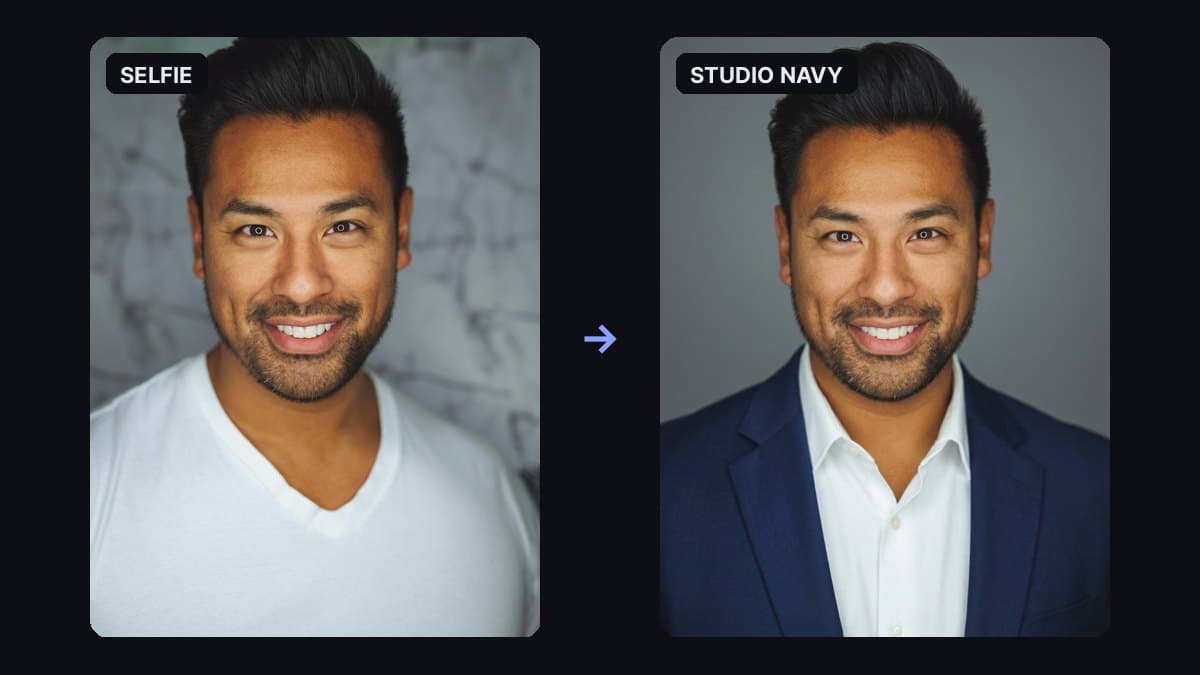
A casual selfie (left) and the Studio navy style (right): real output from LinkedIn Headshot.
To get a professional headshot from a selfie, start with a sharp, front-facing photo in soft window light, then use an AI headshot tool to swap the background, wardrobe and lighting while keeping your face the same. Check the result against the original for likeness, crop it so your face fills most of the frame, and upload a JPG or PNG to LinkedIn.
The image above shows a real result from our LinkedIn Headshot tool: a casual photo in a white T-shirt on the left, the Studio navy style on the right. The face, hair, beard and smile stayed the same. What changed is the blazer and shirt, the plain gray backdrop and the studio lighting.
This guide covers what makes a headshot look professional, how to take a selfie that gives the AI something good to work from, how to pick a style, how to check that it still looks like you, and how to upload it to LinkedIn.
What makes a headshot look professional
Most of the difference between a selfie and a studio headshot comes down to five things:
- Framing. Head and shoulders, centered, with your eyes roughly a third of the way down the frame. Not a full-body shot, and not so close that your forehead is cropped.
- Light. Soft, even light on the face with a small catchlight in the eyes. No harsh shadows under the nose or one half of the face in darkness.
- Background. Plain or softly blurred, so nothing competes with your face. A kitchen, a car interior or a busy street pulls attention away.
- Wardrobe. Simple, well-fitted clothes in solid colors that match how you'd dress for work in your field.
- Expression. Relaxed and looking at the camera. A natural, small smile usually reads as more approachable than a serious stare.
A photographer handles all five in a studio. With AI, you control framing and expression when you take the selfie, and the tool handles the light, background and wardrobe.
Step 1: Take a selfie the AI can work from
The model keeps your face from the photo you upload, so the quality of that photo sets the ceiling for the result.
- Face the camera straight on. A slight angle is fine; a profile or a strong tilt gives the model less of your face to keep.
- Use soft daylight. Stand facing a window, not with the window behind you. Turn off overhead lights that cast shadows on your eyes.
- Hold the camera at eye level, about an arm's length away, or use a timer and prop the phone on a shelf. Low angles distort the jaw and nose.
- Keep it sharp. Wipe the lens, hold still, and skip heavy beauty filters or portrait-mode blur that smears hair edges.
- Be the only person in the frame. Group shots and cropped-out friends confuse the model about whose face to keep.
- Take off sunglasses and hats. Wear your everyday glasses if you wear them in real life, so the headshot matches how people will see you.
Take several and pick the sharpest one with the expression you like. The tool accepts JPG, PNG, WEBP, GIF and BMP (and HEIC when your browser can open it) up to 10 MB, and you can paste an image straight from your clipboard.
Step 2: Pick a style
Open LinkedIn Headshot, drop in your selfie and choose one of four styles:
- Studio navy: navy blazer over a plain white shirt on a clean gray studio backdrop, with soft three-point lighting. The safest choice for corporate roles, finance, law, consulting and most job applications.
- Office window: business-casual sweater or blazer in a bright, blurred office with natural window light. Friendly and modern; a good fit for tech, product and startup roles.
- Outdoor: smart-casual clothes against soft, blurred greenery in overcast daylight. Works well for coaches, consultants, real estate and anyone whose brand is approachable.
- Creative: a dark top against a dark editorial backdrop with subtle rim light. Better for designers, agencies, speakers and personal websites than for a conservative industry.
Pick the style that matches how people in your target role actually dress. A recruiter looking at a bank profile and a design-studio profile expects different things.
Step 3: Add details with Notes (optional)
The optional Notes field lets you adjust the result in plain words. A few examples:
- "Navy blazer, no tie, gray background"
- "Charcoal suit and light blue shirt"
- "Keep my glasses"
- "Lighter gray background, warmer light"
- "Black blouse instead of a blazer"
Keep notes short and about wardrobe, background or light. Then click Generate Headshot. When it's done, click Download to save the image.
Every result is saved to Image History on the tool page, so you can reopen an earlier version or continue editing from it (for example, keep a result you like and try it again with a different note).
Step 4: Check that it still looks like you
The style prompts tell the model to keep your bone structure, eyes, nose, mouth, hairline and skin tone exactly as they are, and not to slim, age or beautify your face. AI can still drift, so compare the result with your selfie before you use it:
- Would a colleague recognize you instantly? If anything about your face looks "off", generate again or try a sharper source photo.
- Hairline, beard and glasses should match the original.
- Skin texture should look real, not plastic or airbrushed.
- Check the details at full size: collars, buttons, ears and earrings are where small artifacts show up.
This matters beyond looks. LinkedIn's own help pages say your profile photo must reflect your likeness. People will meet you on video calls and in person, and a headshot that looks like someone else works against you.
LinkedIn Headshot
Turn a selfie into a professional LinkedIn headshot in one click.
Step 5: Upload it to LinkedIn
LinkedIn's published limits for a profile photo are:
- File type: JPG or PNG (GIFs aren't supported).
- Size: at least 400 × 400 pixels.
- File size: 8 MB or less.
LinkedIn shows profile photos in a circle, so after uploading, use its zoom and position controls to center your face. Aim for your head and shoulders to fill most of the circle; a tiny face in a large frame is hard to recognize in search results and comments.
Use the same headshot across your work profiles (LinkedIn, Slack or Teams, your email signature, a speaker bio) so people connect the name with the face.
What it costs
Each headshot uses about 155 credits, because image models cost more to run than text. New accounts get 100 free credits, which isn't quite enough for a headshot, so you'll need a credit pack for your first one. The $5 Starter pack has 5,000 credits, enough for about 32 headshots, so you can try every style and a few variations of each. The same credits work across all the tools on Many AI Tools. See pricing for all packs.
Mistakes to avoid
- Starting from a blurry or dark photo. The AI can change the lighting around you, but it can't recover facial detail that isn't in the photo.
- Choosing a style that doesn't fit your field. A dark editorial portrait can look out of place on a profile for an accounting role.
- Over-polishing. If the result looks like a different, younger person, it will feel odd when you meet people. Regenerate and pick the most natural one.
- Using an old photo. If your hair, glasses or beard have changed, take a new selfie.
- Cropping too wide. Head and shoulders, not half your body.
Need a different background?
Some team pages and slide decks need a cutout rather than a studio backdrop. Run your headshot through Background Remover and pick Clean cutout for a transparent PNG, White cutout for a plain white background, or Brand color for a solid color fill.
Quick answers
Can I use an AI headshot on LinkedIn? Yes, as long as it looks like you. LinkedIn asks that your profile photo reflects your likeness, so check the result carefully and pick the most natural version.
How do I take a professional headshot at home? Stand facing a window for soft light, hold the camera at eye level, frame your head and shoulders against a plain wall, and take several shots. Then either use the best one as is, or turn it into a studio-style headshot with AI.
Will the AI headshot still look like me? It's designed to. The prompts tell the model to keep your facial features, hair and skin tone and not to beautify your face. A sharp, front-facing selfie in good light gives the best likeness.
What should I wear in a selfie for an AI headshot? It matters less than usual, because the style replaces your outfit (the example above started from a white T-shirt). Make sure your face and hair are visible and nothing covers your neckline, like a scarf or a hood.
What size should a LinkedIn profile photo be? LinkedIn requires at least 400 × 400 pixels, a JPG or PNG file, and 8 MB or less.
How much does an AI headshot cost? On Many AI Tools, about 155 credits per headshot. Credit packs start at $5 for 5,000 credits, about 32 headshots.
Updating the rest of your profile too? Our guide on how to write a LinkedIn post people actually read covers the next step.